Migrate from Thunder Client to Postmate Client
Moving from Thunder Client? Postmate Client finds your Thunder Client data on your machine and imports it in one click — no export, no login, no rebuilding requests. Your collections, folder structure, request order, bodies, auth and environments come across, and your existing Postmate environments are never overwritten.
This guide covers both ways to migrate: importing straight from Thunder's local folder (recommended) and importing an exported Thunder Client file.
Requests gone after the Thunder Client update?
Thunder Client 3.0 hides your saved requests until you log in, but the files are still on your disk. See how to recover them without logging in — the import below works without a Thunder login too.
What you can migrate
- Thunder Client collections — folders, nested folders, request order, URL, method, headers, query params, body and auth
- Thunder Client environments — all variables, merged safely into your existing Postmate environments
- Thunder's default environment — becomes your active environment in Postmate if you haven't picked one
You can import from two sources:
| Source | When to use it |
|---|---|
| This machine (recommended) | Thunder Client was used on this computer. Postmate reads its local folder directly — collections and environments together, no export needed. |
| Exported file | You have a thunder-collection_*.json file, for example from a teammate or another computer. |
Prerequisites
- Postmate Client installed in VS Code (version 2.5.5 or later)
- Thunder Client data on this machine, or an exported Thunder Client collection
.jsonfile
You don't need Thunder Client installed, and you don't need to log in to it.
Part 1 — Import from this machine
Step 1: Start the import
There are two ways in.
From the prompt. If you have no Postmate collections yet, Postmate offers the import as soon as it starts. Click Import.
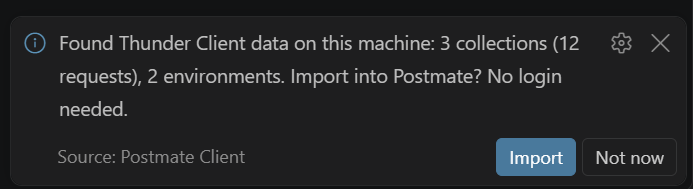 Postmate Client detects Thunder Client data on startup and offers to import it.
From the menu. In the Postmate Client sidebar, on the Collections tab, click the hamburger menu icon (⋮ / ≡) and select Import Postman/Postmate. When asked for the collection type, choose Thunder Client.
Step 2: Choose "Import from this machine"
If Postmate finds Thunder Client data, it shows how many collections, requests and environments it found, and the folder they're in. Choose Import from this machine.
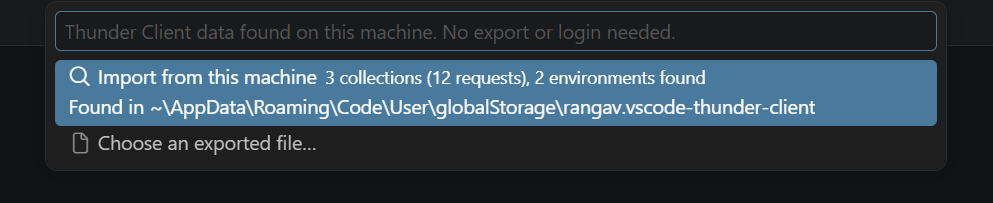 Choose where to import from. "Choose an exported file…" opens the file picker instead (Part 2).
If no Thunder Client data is found, Postmate opens the file picker for an exported file straight away.
Step 3: Pick collections and environments
Postmate lists every collection and environment it found, grouped under Collections and Environments. Everything is selected by default — untick anything you don't want, then click OK.
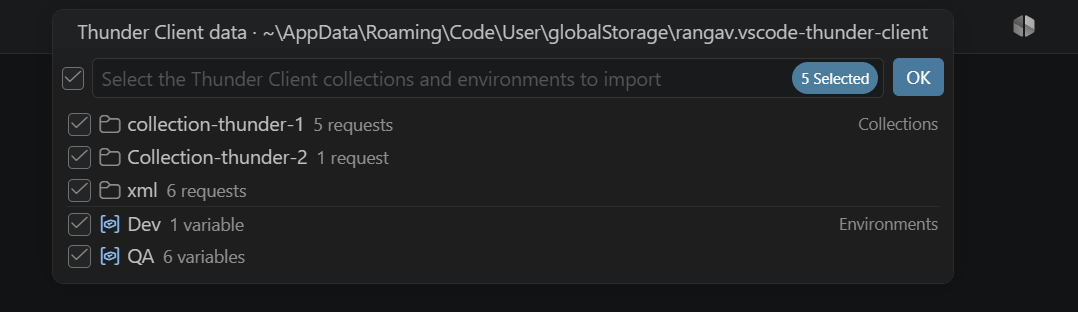 Collections show their request count, environments their variable count. The folder Postmate read from is shown at the top.
Step 4: Review the summary
Postmate imports your selection and shows one summary: which collections and environments were imported, and anything that needs a quick look — for example a file field in a multipart body that has to be re-attached. The collections appear in the sidebar with their folders, in the same order as in Thunder Client.
Thunder Client's files are only read, never changed or deleted. Your Thunder data stays exactly where it was.
Where Postmate looks for Thunder Client data
- Thunder's storage folder for the editor you're using
- Thunder's storage folders for other editors on the same machine — VS Code, VS Code Insiders, Cursor, Windsurf, VSCodium and VS Code Server — so you can switch editors and still bring your requests along
- A
thunder-testsfolder in your open workspace, if you used Thunder's Save to Workspace setting
If the same collection or environment is found in more than one place, it is listed once. The workspace copy wins, as it does in Thunder Client.
For the exact folder paths on Windows, macOS and Linux, see where Thunder Client keeps your data.
Part 2 — Import an exported Thunder Client file
Step 1: Export the collection from Thunder Client
- In Thunder Client, open the Collections tab.
- Click the menu (
≡) next to the collection and select Export. - Save the
.jsonfile somewhere accessible on your machine.
Step 2: Import the file into Postmate Client
- In the Postmate Client sidebar, on the Collections tab, open the hamburger menu and select Import Postman/Postmate.
- Choose Thunder Client as the collection type.
- If Thunder data is found on this machine, choose Choose an exported file….
- Select the
.jsonfile. The file picker opens in your Downloads folder.
The collection appears in the sidebar with its folders and requests.
How environments are merged
Importing Thunder environments never overwrites anything you already have in Postmate.
| Situation | What happens |
|---|---|
| No Postmate environment with that name | A new environment is created with all of Thunder's variables |
A Postmate environment with the same name (case doesn't matter: QA matches qa) | Only the variables it's missing are added. Variables you already have keep their Postmate values — the summary lists them |
| The Thunder environment is marked default | It becomes your active environment, only if you haven't selected one in Postmate |
TIP
Thunder environments that have no variables are skipped — there's nothing to import.
Handling duplicate collection names
If a collection with the same name already exists in Postmate Client, you'll see a confirmation prompt:
⚠️ Collection "school" already exists. Overwrite?
| Choice | Result |
|---|---|
| Yes | Replaces the existing collection with the newly imported one |
| No | Skips this collection, leaving the existing one untouched |
What transfers cleanly
- ✅ Collections, nested folders and request order
- ✅ Request method, URL, enabled headers and query params
- ✅ JSON, form-encoded, multipart text fields, XML, text and GraphQL bodies (with variables)
- ✅
{{variables}}, including unquoted ones in JSON bodies - ✅ Bearer and Basic auth
- ✅ Environments and their variables (merged as described above)
What needs manual review
- ⚠️ Thunder tests — not imported. Re-add them in the Tests tab, in plain English or with
pmscripts - ⚠️ Thunder scripts (pre-request and post-request) — not imported, because Thunder uses its own
tcsyntax - ⚠️ File fields in multipart bodies — skipped. Re-attach the files
- ⚠️ OAuth 2.0 and other auth types — set them up again in the Auth tab. Postmate supports OAuth 2.0; the Thunder settings just aren't carried over
- ⚠️ Disabled headers and query params — skipped
Every item that needs attention is listed in the summary after the import, with the name of the request.
Quick reference
| Step | What to do |
|---|---|
| 1 | Click Import on the startup prompt, or open the Collections hamburger menu → Import Postman/Postmate → Thunder Client |
| 2 | Choose Import from this machine (or Choose an exported file… for a .json export) |
| 3 | Untick anything you don't want and click OK |
| 4 | If prompted about a duplicate collection, choose Yes to overwrite or No to skip |
| 5 | Check the summary and redo tests, scripts, file fields or unsupported auth where listed |
Frequently asked questions
Do I need to export from Thunder Client first?
No. Postmate Client reads Thunder Client's local folder directly. Exporting is only needed if the data is on another computer.
Do I need to log in to Thunder Client?
No. Postmate reads the files Thunder keeps on your disk, so the import works even if Thunder Client 3.0 won't show your requests without an account.
Do I need Thunder Client installed?
No. Postmate only needs Thunder's data folder. If you've already uninstalled Thunder Client and its folder is still on your machine, the import still works.
Will importing overwrite my existing Postmate environments?
No. If an environment with the same name exists, Postmate only adds the variables it's missing. Variables you already have keep their values.
Why didn't Postmate set my Thunder default environment as active?
Because you already had an active environment in Postmate. Postmate only sets Thunder's default as active when none is selected, so it never changes a choice you made.
I use Cursor now, but my Thunder Client data is in VS Code. Will it work?
Yes. Postmate looks in Thunder's storage folders for other editors on the same machine, including VS Code, VS Code Insiders, Cursor, Windsurf and VSCodium.
Why do I see the same collection only once when it's in two places?
If you copied Thunder's data into a workspace thunder-tests folder, the same collection exists twice. Postmate lists it once and uses the workspace copy, which is the one Thunder Client itself uses when Save to Workspace is on.
Does Postmate change or delete my Thunder Client files?
No. The files are only read. Everything stays where it was.
The startup prompt keeps appearing. How do I stop it?
The prompt appears on every start while you have no Postmate collections, and stops as soon as you have one — import, or create a request. Once you have collections, it's shown at most once.
Is Postmate Client a free alternative to Thunder Client?
Yes. Postmate Client is free forever — no paid tiers, no team seats, no login required, free for commercial use. It runs entirely inside VS Code with no cloud sync and no telemetry. See the Thunder Client alternative comparison or install it from the VS Code Marketplace.