Collection Runner in Postmate Client (Run API Collections in VS Code)
The Postmate Client Collection Runner lets you run API collections in VS Code with full support for automated API testing — with support for automated API testing, multiple iterations, data-driven execution, and HTML reports.
If you're looking for a Postman Collection Runner alternative inside VS Code, this feature gives you everything you need — without leaving your editor or sending data to the cloud.
What is a Collection Runner?
A Collection Runner is a tool that executes multiple API requests in sequence. It’s commonly used for:
- Automated API testing
- Regression testing
- Running workflows (login → action → validation)
- Data-driven testing using datasets
- Generating test reports
In Postmate Client, the runner is built directly into VS Code — making it fast, private, and developer-friendly.
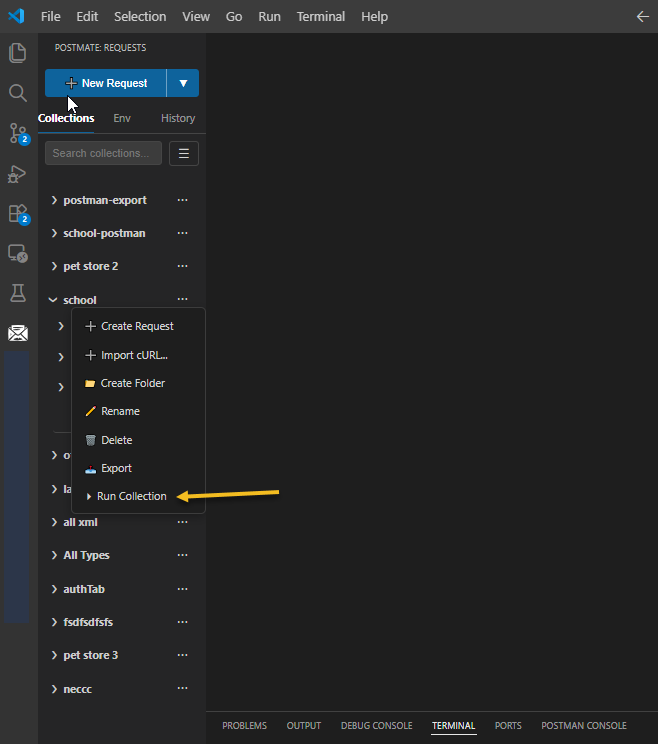
Step 1 — Open the Collection Runner
Right-click (hover and click ...) on any collection or folder in the sidebar and select Run Collection.
This opens a Run Collection tab where you can execute:
- Full collection — run all API requests
- Folder — run a subset of endpoints
- Custom selection — choose specific requests
Step 2 — Configure the Run
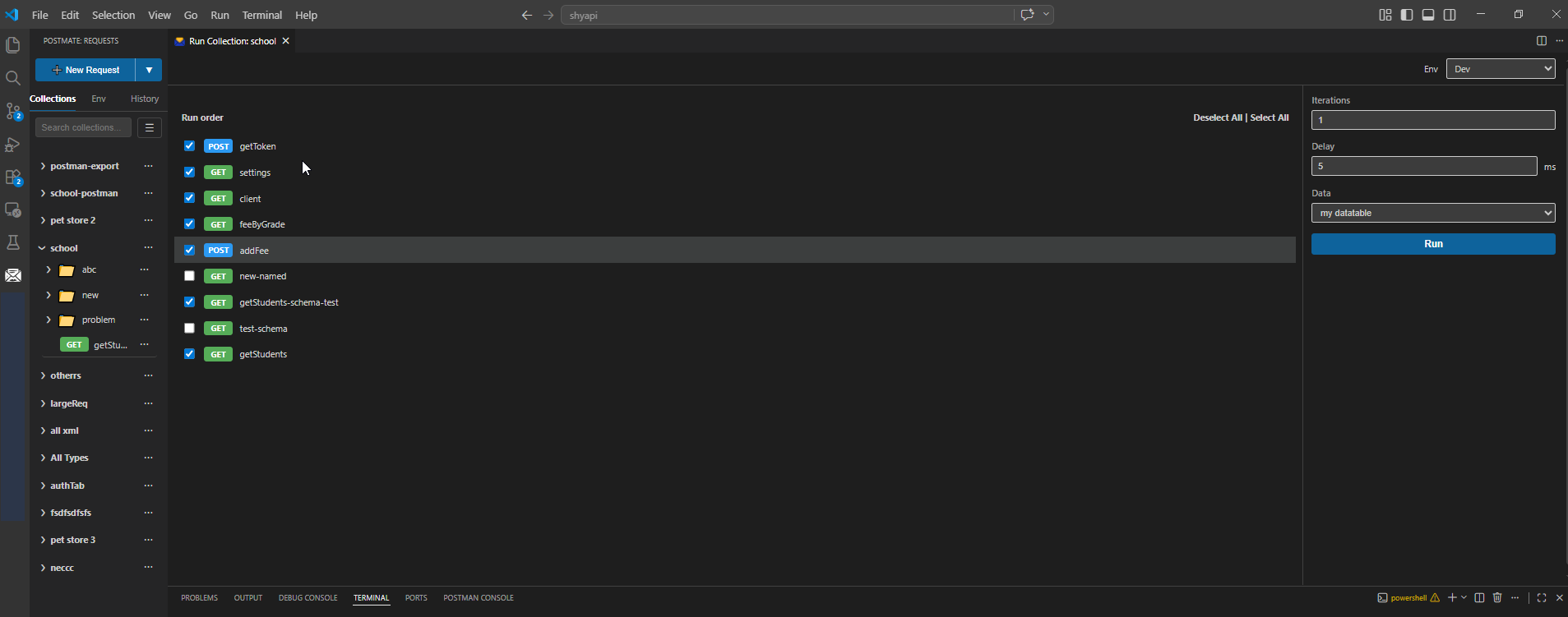
The runner interface is split into two sections:
Left — Request Selection (Execution order can be changed using drag-and-drop)
- Select or deselect requests using checkboxes
- Use Select All / Deselect All for quick control
- Run only what you need (great for debugging)
Right — Run settings
| Setting | Description |
|---|---|
| Env | Target environment — Dev, Staging, Production, etc. |
| Iterations | How many times to run the full collection. Enter 1 for a single run, or more for repeated runs (useful with data tables) |
| Delay | Wait time between requests in milliseconds — useful for rate-limited APIs |
| Data | Select a data table to attach — the runner iterates through one row per iteration |
🧮 Total Request Executions
Total Runs = Number of Requests × Rows in Data Table × Iterations
Click Run to start execution.
Step 3 — Live API Test Results
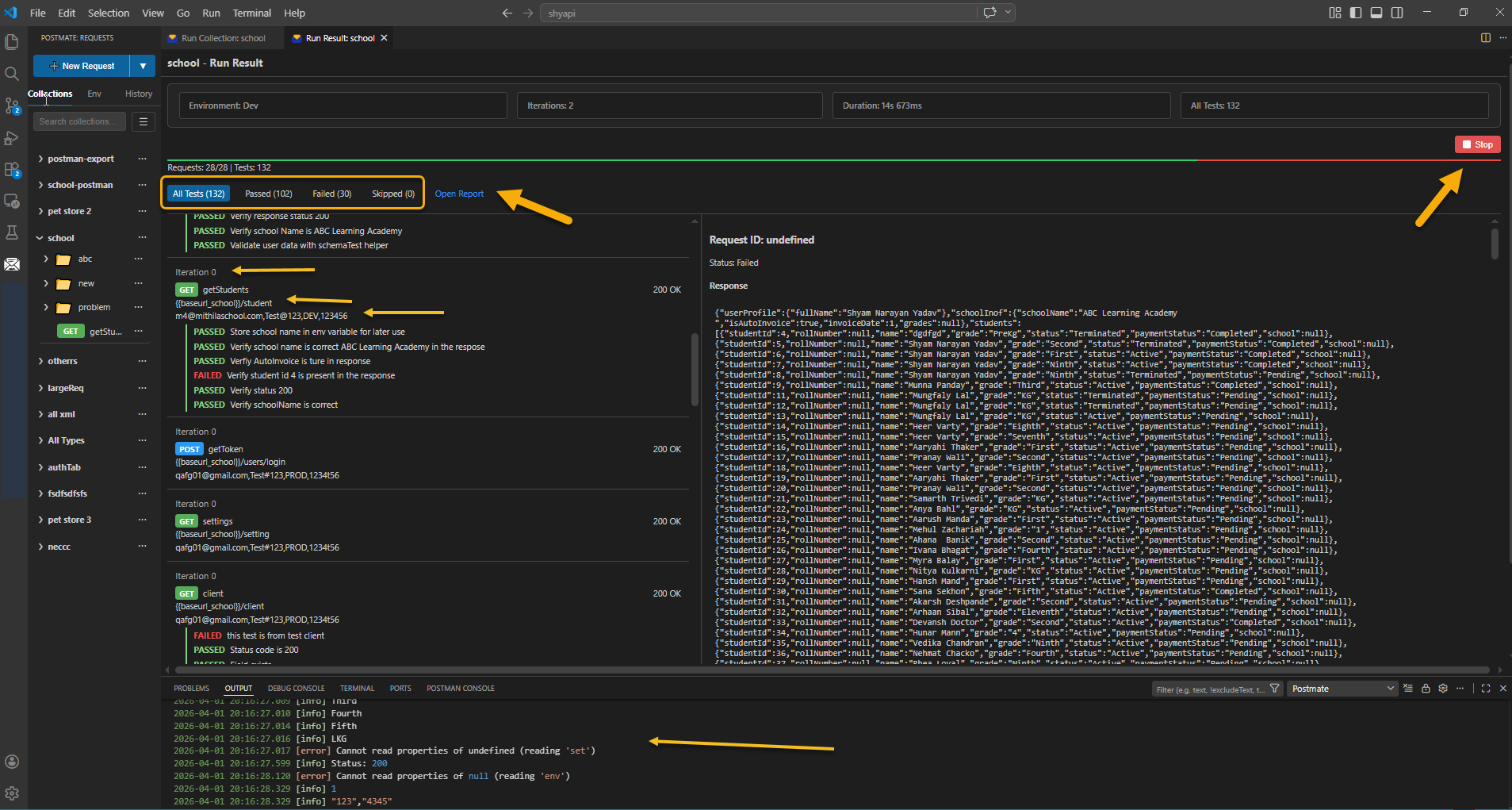
Once execution starts, Postmate Client opens a live results dashboard.
🔝 Run Summary
- Environment used
- Total iterations
- Execution duration
- Total number of tests
📈 Real-Time Progress
- 🟢 Passed tests
- 🔴 Failed tests
📋 Request-Level Insights
Each request shows:
- HTTP method (GET, POST, etc.)
- Final resolved URL
- Iteration number
- Test data used
- Response status (e.g., 200 OK)
- Assertion results (pass/fail)
Click any request to inspect the response body and debug issues instantly.
🔍 Filter and Debug Faster
Quickly isolate problems using built-in filters:
| Filter | Shows |
|---|---|
| All Tests | Every request regardless of result |
| Passed | Only requests where all tests passed |
| Failed | Requests with one or more failed assertions |
| Skipped | Requests that were unchecked or skipped |
TIP
You can also stop execution anytime using the Stop button.
Step 4 — Generate HTML Test Reports
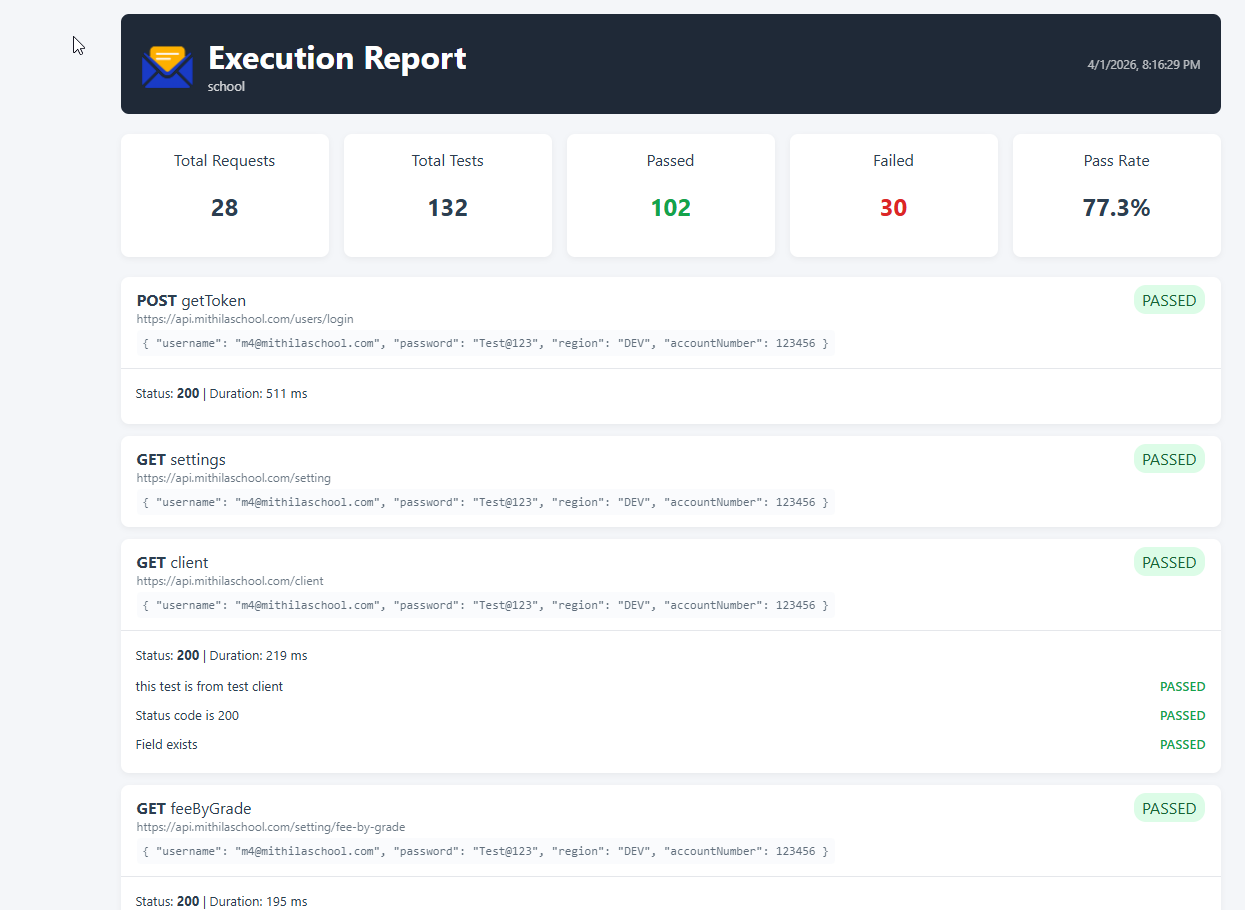
After execution, Postmate Client automatically generates a self-contained HTML report.
What’s inside the report?
- Summary (Total Requests, Passed, Failed, Pass Rate)
- Detailed request breakdown
- Assertion-level results
- Execution timestamp
- Collection name
This report is perfect for:
- Sharing with teams
- Attaching to bug reports
- CI/CD artifacts
- Audit and test evidence
Step 5 — Debug with Console Logs
Use the Postmate Output Console in the VS Code Output panel to debug your runs.
// Example — log the token captured during the run
pm.log('Token: ' + pm.getVariable('accessToken'));
pm.log('Status: ' + RESPONSE.status);
Console logs help you:
- Track variables
- Debug test failures
- Understand execution flow
🔁 Data-Driven API Testing (Power Feature)
With data tables, Postmate Client executes all rows in the dataset for every iteration.
✅ How it actually works If your data table has 10 rows And you run 5 iterations
👉 Then all 10 rows are executed 5 times 👉 Total executions = 10 × 5 = 50 request runs
🔄 Execution Flow
- Iteration 1 → Rows 1 → 10
- Iteration 2 → Rows 1 → 10
- Iteration 3 → Rows 1 → 10
- ...
- Iteration 5 → Rows 1 → 10
Each iteration loops through the entire dataset from start to end.
See Data Tables for how to create and attach data tables to environments.
💡 Why Use Postmate Client Collection Runner?
- ⚡ Runs directly inside VS Code (no context switching)
- 🔒 Fully local execution (privacy-first API testing)
- 🔁 Built-in data-driven testing
- 📊 Instant live results + HTML reports
- 🧪 Scriptable assertions with full control
If you're switching from Postman or Thunder Client, this is a faster, cleaner, and more developer-native workflow.
Pro tip
Start with 1 iteration and minimal data to validate your flow. Then scale to full data-driven automation once everything is stable.