Environments, Variables & Data Tables in API Testing (Postman Alternative Guide)
Manage environment variables, data-driven testing, and reusable headers in Postmate Client — a powerful Postman alternative for API testing inside VS Code.
If you've used tools like Postman or Thunder Client, this guide will help you understand how to organize environments, use CSV data tables, and simplify request configuration.
Many API testing tools store data in the cloud by default. Postmate Client gives you full control by keeping everything local inside VS Code.
Why Environments Matter in API Testing
In API testing tools like Postman and Thunder Client, environments allow you to switch between development, staging, and production servers without modifying requests manually.
Postmate Client follows the same concept — but keeps everything local, fast, and version-controlled inside VS Code.
The Env Tab
Click the Env tab in the Postmate panel. The panel is divided into three sections:
- Environments — your named variable sets (Dev, Staging, Production, etc.)
- Data Tables — CSV-style test data files that can be attached to environments
- Manage Headers — a shared JSON file that powers header autocomplete across all requests
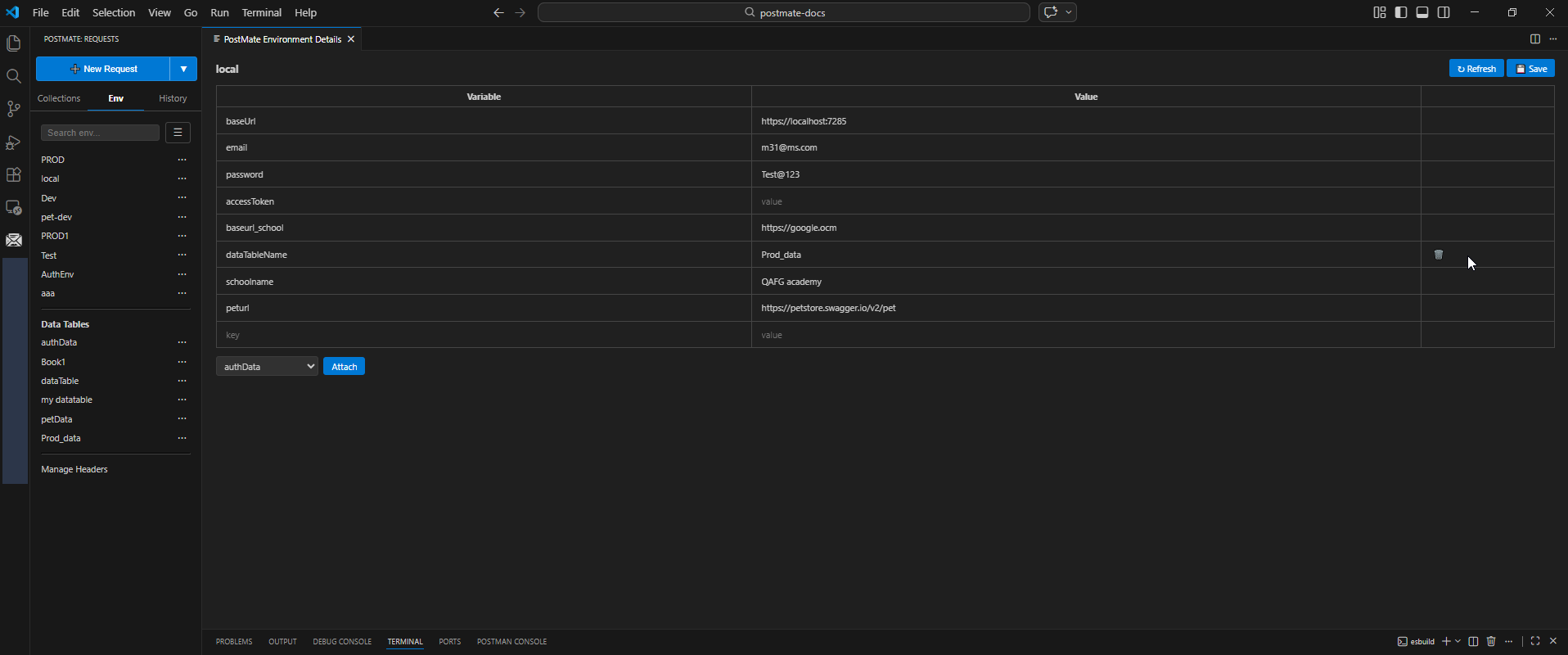
Environments
Creating an Environment
- Go to the Env tab.
- Click the hamburger menu (☰) next to the search bar.
- Select New Environment (or Import Environment to restore from a file).
- Enter a name (e.g.
Dev,Staging,PROD) and press Enter.
The new environment appears in the list immediately.
Editing Environment Variables
Click any environment name in the list to open it in the Environment Details panel. Variables are displayed in a two-column table — Variable and Value.
- Click any Value cell to edit it inline.
- Add a new row by typing in the empty row at the bottom.
- Click Save (top-right) to persist your changes.
- Click Refresh to reload the environment from disk if it was modified externally.
Example environment — local:
| Variable | Value |
|---|---|
baseUrl | https://localhost:7285 |
email | [email protected] |
password | Test@123 |
accessToken | (set at runtime via script) |
baseurl_school | https://api.school.com |
Keep credentials out of this file
Variables like password or API keys shouldn't live in the env file as plaintext. Mark them as secret (🔒) and the value is stored in your OS keychain instead — the file keeps only a marker, making it safe to commit and share. See Secret Variables.
Using Variables in Requests
In API testing tools like Postman and Thunder Client, variables are referenced using double curly braces. Postmate Client follows the same pattern:
Reference any variable with double curly braces {{variableName}} anywhere in a request.
# URL
{{baseUrl}}/api/users/{{userId}}

# Header
Authorization: Bearer {{accessToken}}

# Body
{ "email": "{{email}}", "password": "{{password}}" }
Postmate resolves the values from the active environment at send time. Switch environments and every {{variable}} updates instantly — no need to edit requests manually.
Environment Actions Menu
Hover over any environment in the list and click ... to open its action menu:
| Action | Description |
|---|---|
| Clone | Duplicate the environment with all its variables — useful for creating a Staging copy of Production |
| Rename | Rename the environment |
| Export | Save the environment as a JSON file for sharing or backup |
| Delete | Permanently remove the environment |
Attaching a Data Table to an Environment
At the bottom of the Environment Details panel, a dropdown lists all available data tables. Select a data table and click Attach to use it for data-driven API testing..
Once attached, the data table's columns become available as variables in any request running under this environment, and the Select Data dropdown on the request panel will show the table's rows for quick selection.
See the full data-driven API testing guide in Data Tables
Managing Variables via Scripts
Use the pm API in pre/post-request scripts to read and write environment variables at runtime:
// Capture a token from a login response
pm.setVariable('accessToken', RESPONSE.body.token);

// Read a variable
const token = pm.getVariable('accessToken');

// List all variables in the active environment
pm.listVariables();

// Remove a variable
pm.clearVariable('tempToken');
WARNING
Variables set via pm.setVariable() are scoped to the active environment. Switching environments will use that environment's own variable set.
Variable Resolution Order
When Postmate resolves {{variableName}}, it checks in this order:
- Runtime variables — set by
pm.setVariable()during the current run - Active environment — the selected environment's key-value pairs
- Attached data table row — the selected row from the environment's data table
- Unresolved — the literal
{{variableName}}is sent as-is
Data Tables for API Testing (CSV-Based Data-Driven Testing)
Below the environment list, the Data Tables section lists all data table files in your project.
Creating a Data Table
- Click the hamburger menu (☰) in the Env tab.
- Select Import Data Table to import an existing CSV, or create a new one directly.
Editing a Data Table
Click any data table name to open it in the VS Code native editor. Similar to data-driven testing in Postman, Postmate Client uses CSV-based data tables to run requests with multiple inputs. You can edit columns and rows directly and save using Ctrl+S.
username,password,region,accountNumber
[email protected],Test@123,DEV,123456
[email protected],Admin@456,PROD,789012
Data Table Actions
Hover over any data table and click ... → Delete to remove it.
Manage Headers
At the bottom of the Env tab, Manage Headers opens a JSON file that contains a list of custom headers. This file powers the header autocomplete feature across all requests in your project.
How It Works
Any header key defined in this file appears as an autocomplete suggestion when you type in the Headers tab of any request — saving time and enforcing consistency across your team.
Editing Managed Headers
Click Manage Headers to open the file in the VS Code native editor. The format is a JSON array of header objects:
[
  { "key": "X-Tenant-ID",      "value": "{{tenantId}}" },
  { "key": "X-API-Version",    "value": "v2" },
  { "key": "X-Correlation-ID", "value": "{{correlationId}}" }
]
Save the file (Ctrl+S) and the new headers are immediately available as autocomplete suggestions in every request.
TIP
Use Manage Headers to standardise custom headers across your team — commit the file to Git so every team member gets the same autocomplete suggestions.
Postmate Client vs Postman & Thunder Client
If you're coming from Postman or Thunder Client, Postmate Client offers:
- ✅ Local-first API testing (no cloud sync)
- ✅ Built-in CSV data tables for data-driven testing
- ✅ Environment variable scripting with pm API
- ✅ Native VS Code integration
This makes Postmate Client a strong Postman alternative for developers who want secure, fast, and offline-friendly API testing without relying on cloud sync.
Unlike Postman, Postmate Client keeps all environment variables and data local to your machine — making it a secure choice for sensitive API testing workflows.
❓ FAQs
What are environment variables in API testing?
Environment variables store reusable values like base URLs, tokens, and credentials across requests.
How are data tables used in API testing?
Data tables (CSV files) allow you to run the same API request with multiple datasets.
Is Postmate Client a Postman alternative?
Yes, Postmate Client is a local-first API testing tool similar to Postman and Thunder Client but runs entirely inside VS Code.