How to Import from cURL in Postmate Client (PMC) — Two Ways
Got a cURL command? Postmate Client (PMC) lets you turn it into a fully structured API request in seconds — right inside VS Code. no manual header configuration, no re-entering URLs or auth tokens.
There are two ways to import a cURL command in PMC, depending on your workflow:
| Method | Best For |
|---|---|
| On the fly | Quick testing without committing to a collection upfront |
| Directly into a collection/folder | Saving the request in the right place immediately |
Both are covered below.
Method 1: Import cURL On the Fly (No Upfront Save Required)
This is the fastest path — paste your cURL, fire the request, and decide whether to save it afterward.
Step 1: Open "From cURL..." in PMC
In the Postmate Client sidebar, click the dropdown arrow (▾) on the right side of the New Request split button.
Select "From cURL..." from the menu.
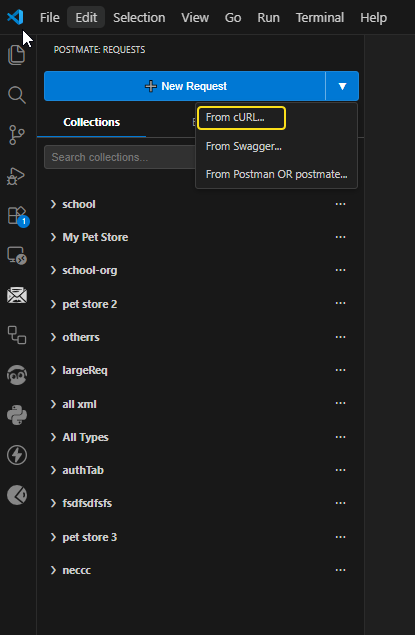 The New Request dropdown in Postmate Client — select "From cURL..." to begin.
All options in the split button:
- From cURL... ← select this
- From Swagger...
- From Postman OR postmate...
Step 2: Paste Your cURL Command
The "Import from cURL" dialog appears. Paste your cURL command into the text area.
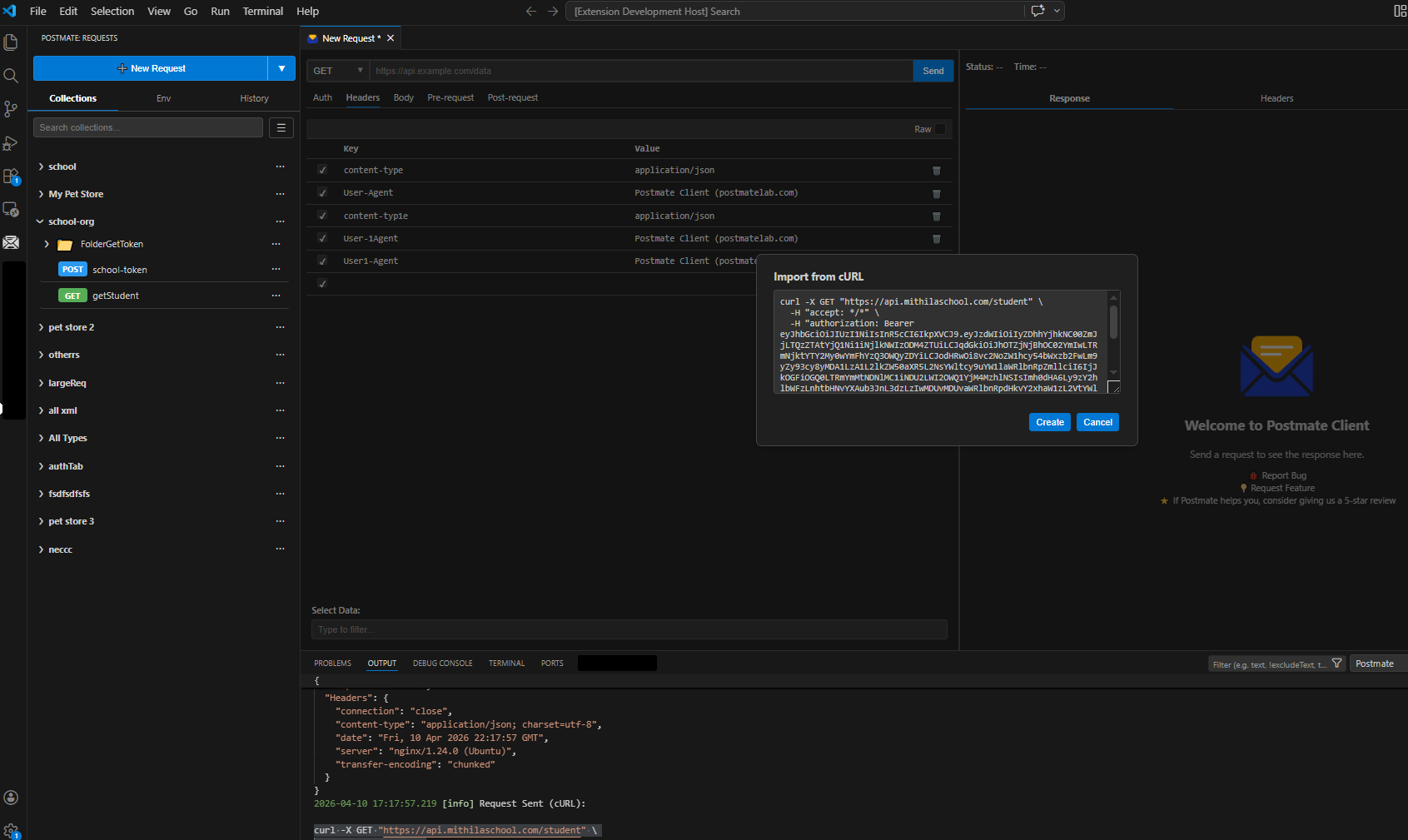 Paste any cURL command — headers, auth tokens, body — PMC parses it all automatically.
PMC will automatically parse and extract:
- ✅ HTTP method (GET, POST, PUT, DELETE, etc.)
- ✅ Request URL
- ✅ All headers (including
Authorization,Content-Type, etc.) - ✅ Request body
Step 3: Click "Create"
Click the Create button. Your request opens immediately as a new tab — ready to send.
Step 4: Send and Test
Click Send to fire the request. Inspect the response, headers, and timing in the panel on the right.
Step 5: Save It When You're Ready (Ctrl+S)
If the request looks good and you want to keep it, press Ctrl+S. PMC will prompt you to:
- Choose the collection where you want to save it
- Enter a request name
No pressure to save upfront — test first, organize later.
🎥 Video Walkthrough
Watch how to import cURL into Postmate Client in seconds.
Method 2: Import cURL Directly Into a Collection or Folder
When you already know where a request belongs, import it directly into the right collection or folder — skipping the extra save step.
Step 1: Navigate to Your Target Collection or Folder
In the PMC sidebar, find the collection or folder where you want the request to live. Click the "..." (more options) menu next to it.
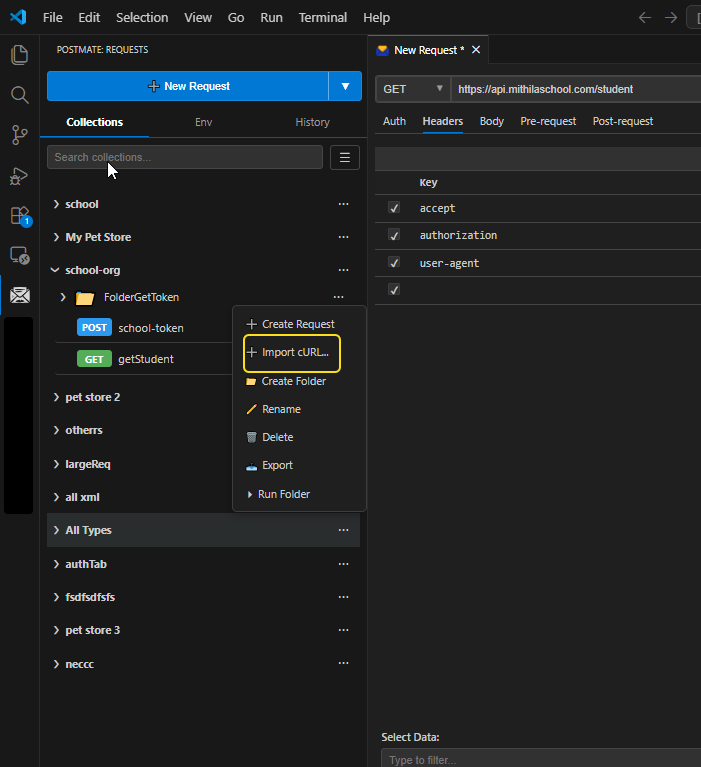 Right-click or click "..." on any collection or folder to access the Import cURL option.
Step 2: Select "Import cURL..."
From the popup menu, click "Import cURL...".
Other options in this menu:
- Create Request
- Import cURL... ← select this
- Create Folder
- Rename
- Delete
- Export
- Run Folder
Step 3: Name Your Request and Paste the cURL
The "Import from cURL" dialog appears with an extra request name field at the top.
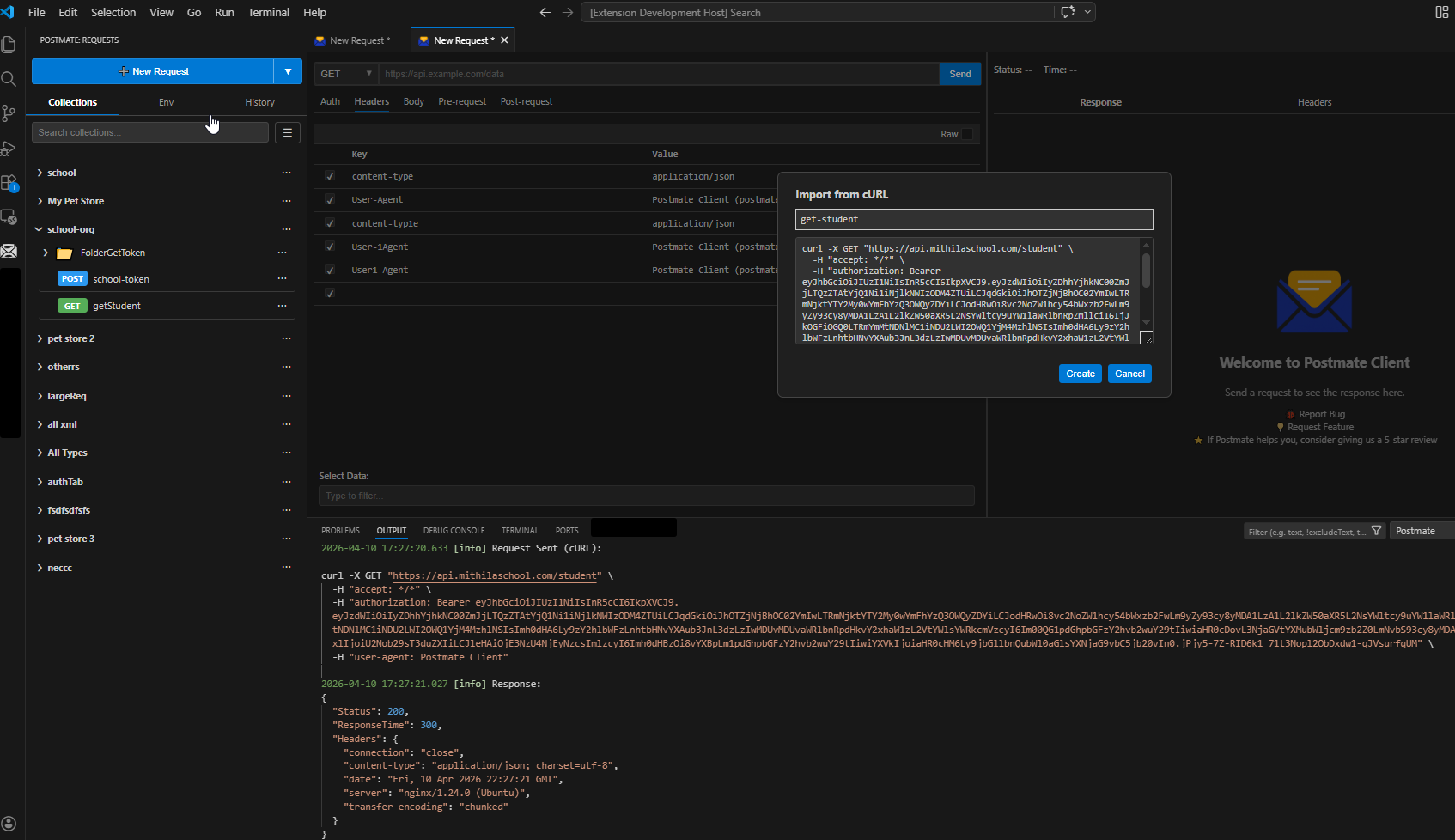 Give your request a name, paste the cURL command, then click Create.
- Enter a request name in the field at the top (e.g.,
get-student) - Paste your cURL command in the text area below
- Click Create
Step 4: Your Request Is Created Inside the Collection
The request appears instantly inside your chosen collection or folder — named, organized, and ready to send.
Step 5: Parameterize If Needed
If you're using this request in data-driven testing, you can now parameterize replace hardcoded values (IDs, tokens, base URLs) with variables like {{studentId}} or {{baseUrl}}. PMC will resolve these from your environment or data table at runtime.
Learn more about parameterization and data-driven testing in PMC: Data Tables
Choosing the Right Method
| On the Fly | Into Collection/Folder | |
|---|---|---|
| Save required upfront? | ❌ No | ✅ Yes (name + location) |
| Best for | Quick one-off testing | Organized collections |
| Can be saved later? | ✅ Yes, Ctrl+S | Already saved |
| Supports parameterization? | ✅ After saving | ✅ Immediately |
Learn more:
Frequently Asked Questions
Can I import a cURL command with Bearer token auth into PMC?
Yes. PMC parses the full cURL command including -H "Authorization: Bearer <token>" headers. Your auth header will appear pre-filled in the Headers tab of the request.
What happens to the request if I close the tab without saving in on-the-fly mode?
The request will be lost if you close the tab without pressing Ctrl+S. PMC will not auto-save on-the-fly imports — always save explicitly when you want to keep a request.
Can I import a cURL POST request with a JSON body?
Yes. PMC parses --data, -d, and --data-raw flags from the cURL command and populates the Body tab automatically with the correct content type.
How do I parameterize a request after importing from cURL?
After the request is created, replace any hardcoded values in the URL, headers, or body with PMC variables using double curly brace syntax — for example, replace https://api.example.com with {{baseUrl}}, or replace a hardcoded ID with {{studentId}}. Define the values in your environment or data table.
Can I import cURL directly into a sub-folder inside a collection?
Yes. In the PMC sidebar, navigate to any sub-folder, click its "..." menu, and select Import cURL.... The request will be created at that exact level in your collection hierarchy.
Does PMC support multi-line cURL commands?
Yes. You can paste multi-line cURL commands (using backslashes \ for line continuation) into the import dialog, and PMC will parse them correctly as a single request.