GraphQL in Postmate Client (Postman Alternative for GraphQL APIs)
Send GraphQL queries and mutations directly inside VS Code with Postmate Client — a fast, privacy-first Postman alternative for GraphQL APIs.
Postmate Client supports GraphQL as a first-class body type. You write your query and variables in dedicated editors, and Postmate handles the JSON payload, headers, and request shape automatically. No login. No cloud sync. No telemetry.
If you're looking for a free GraphQL client for VS Code — or a Postman alternative that supports both REST and GraphQL APIs without switching tools — Postmate Client is built for you.
What Is a GraphQL Request?
A GraphQL request is an HTTP POST to a single endpoint, where the body contains:
- A query or mutation — what you want to read or write
- An optional variables object — values referenced inside the query
Unlike REST, GraphQL lets you describe the exact shape of the response you want, and the server returns only those fields. This makes GraphQL well-suited to APIs where the client needs flexibility over what data is returned.
Postmate Client vs Postman for GraphQL
Both tools support GraphQL, but Postmate Client keeps the experience local, free, and consistent with the rest of the app:
- No cloud sync — your queries, variables, and tokens never leave your machine
- No login required — open VS Code and start querying GraphQL APIs immediately
- Same editor for REST and GraphQL — switch body type with a radio button, not a separate request mode
- Environment variables work inside queries — reference
{{authToken}}or{{userId}}directly in the Query or Variables editor - Tests run on the JSON response — your tabular tests and
pmscripts work without changes - Free forever — every GraphQL feature, every collection, free
If you're migrating from Postman, your existing GraphQL collections come across through the Postman import flow.
How to Send a GraphQL Request in VS Code
The example below uses the public Countries GraphQL API — no auth needed, so you can copy it and try it immediately.
Steps:
- Create a new request and set the method to
POST. - Set the URL to
https://countries.trevorblades.com/. - Open the Body tab.
- Select the GraphQL radio option.
- Paste your query into the Query editor.
- Paste any operation variables as JSON into the Variables editor.
- Click Send.
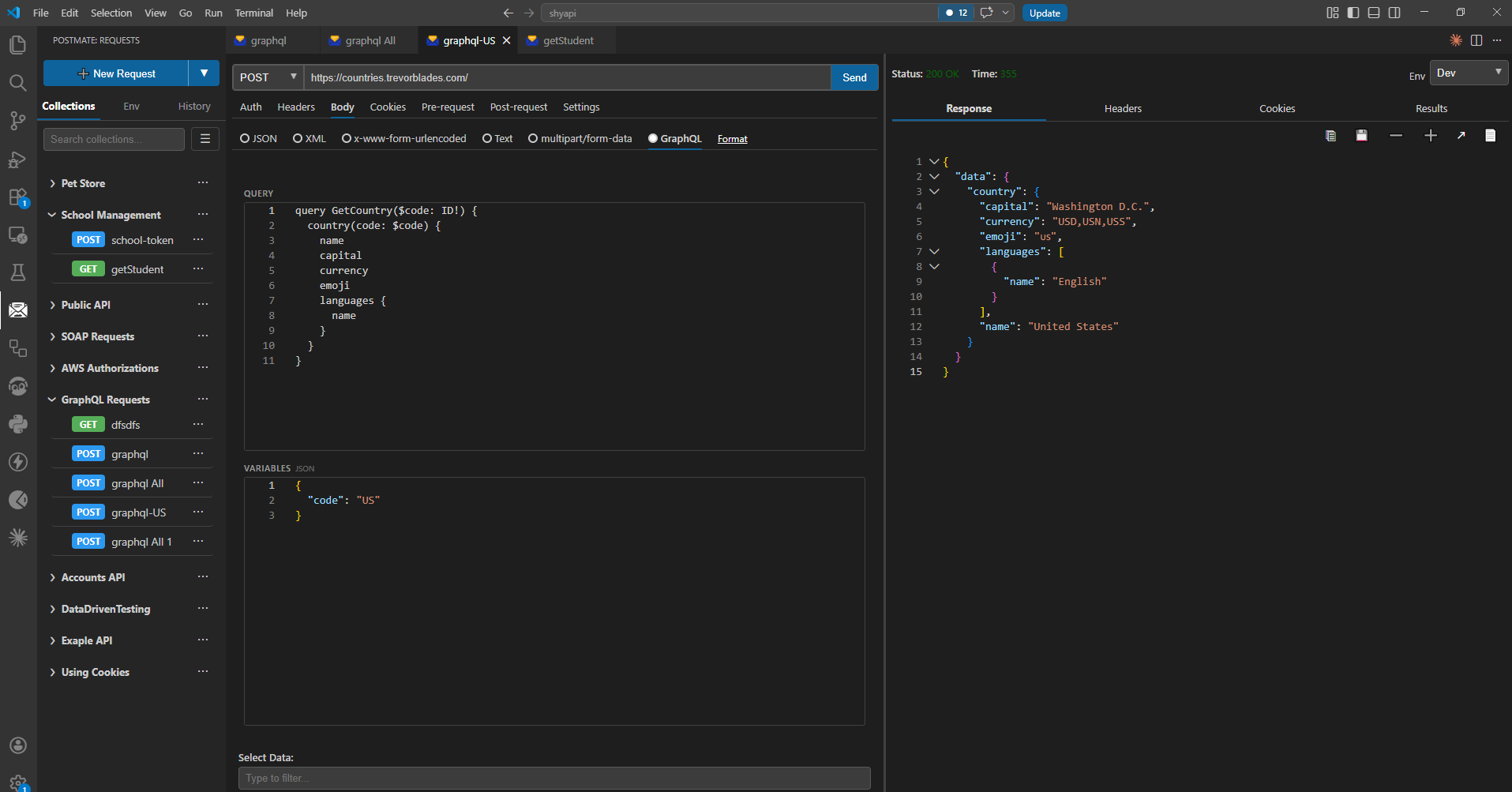
Query
query GetCountry($code: ID!) {
  country(code: $code) {
    name
    capital
    currency
    emoji
    languages {
      name
    }
  }
}
Variables
{
  "code": "US"
}
Response
{
  "data": {
    "country": {
      "name": "United States",
      "capital": "Washington D.C.",
      "currency": "USD,USN,USS",
      "emoji": "🇺🇸",
      "languages": [
        { "name": "English" }
      ]
    }
  }
}
The Query and Variables Editors
Selecting GraphQL in the Body tab splits the panel into two editors:
| Editor | Purpose |
|---|---|
| Query | Your query or mutation text. Write it exactly as you would in any GraphQL playground. |
| Variables | A JSON object whose keys match the variable names declared in your query (e.g. $code). |
At send time, Postmate Client wraps both editors into the standard GraphQL JSON payload:
{
  "query": "query GetCountry($code: ID!) { country(code: $code) { name capital } }",
  "variables": { "code": "US" }
}
Content-Type: application/json is set automatically — you do not need to add it manually in the Headers tab.
Using Environment Variables in GraphQL Queries
Both the Query and Variables editors support Postmate's {{variable}} syntax. Type {{ anywhere to insert a value from the active environment or data table.
Common patterns:
Inject an ID from the active environment into Variables:
{
  "code": "{{countryCode}}"
}
Use an environment value inside the query itself (useful for dynamic fragments or region-aware queries):
query Health {
  status(region: "{{region}}") {
    ok
  }
}
Combined with the Env dropdown at the top of the request panel, this lets you run the same GraphQL request across dev, staging, and prod without editing the query.
GraphQL Authentication
Most production GraphQL APIs require an auth header. Configure it the same way as any REST request:
- Open the Auth tab.
- Select Bearer Token (or your auth scheme).
- Reference a variable so it switches with the environment:
Bearer {{accessToken}}If your token comes from a login endpoint, use Request Chaining to run the login request first and capture the token automatically — the same pattern works for REST and GraphQL APIs.
Sending GraphQL Mutations
Mutations use the same editor — just start your operation with mutation instead of query. There is no separate mode to switch to.
Example mutation
mutation CreateUser($input: UserInput!) {
  createUser(input: $input) {
    id
    email
  }
}
Variables
{
  "input": {
    "email": "[email protected]",
    "name": "Ada Lovelace"
  }
}
Testing GraphQL Responses
GraphQL responses are JSON, so all of Postmate Client's testing tools work without modification:
- Tabular tests — assert against fields under
data.*using JSON path (e.g.$.data.country.name) - Script assertions — use the
pmlibrary andRESPONSE.bodyas usual - Response comparison — diff GraphQL responses between environments with Compare Response
Example tabular test against the Countries API:
| JSON path | Operator | Expected value | Description |
|---|---|---|---|
$.data.country.name | equal | United States | Country name is correct |
$.data.country.capital | equal | Washington D.C. | Capital is correct |
$.data.country.languages[0].name | equal | English | First language is English |
Example script assertion:
pm.test('Country query returned data', () => {
  pm.expect(RESPONSE.status).to.equal(200);
  pm.expect(RESPONSE.body.data.country).to.not.be.null;
});

pm.test('No GraphQL errors', () => {
  pm.expect(RESPONSE.body.errors).to.be.undefined;
});

pm.test('Country name is correct', () => {
  pm.expect(RESPONSE.body.data.country.name).to.equal('United States');
});
TIP
GraphQL servers return 200 OK even when the query has errors — the errors appear in a data.errors array. Always check RESPONSE.body.errors in your GraphQL tests, not just the HTTP status code.
Tips for Working with GraphQL in Postmate Client
- Format your query — paste a pretty-printed query. The Query editor preserves whitespace, so well-formatted queries stay readable.
- One query per request — keep each GraphQL operation in its own saved request rather than swapping queries in the same request. Easier to find, test, and chain.
- Name your operations —
query GetCountry($code: ID!)is easier to debug than an anonymous query, and named operations show up in server-side logs. - Use Variables, not string interpolation — putting values into the Variables editor is safer than building them into the query string. GraphQL servers can cache and optimise parameterised queries.
- Chain auth + query — pair a login request with your GraphQL request using Request Chaining so tokens refresh automatically.
Frequently Asked Questions
Can I use Postmate Client as a Postman alternative for GraphQL? Yes. Postmate Client supports GraphQL queries, mutations, variables, environment values, authentication, and the full testing toolkit — all locally inside VS Code with no login or cloud sync.
How do I send a GraphQL request in VS Code? Open the Body tab on any request, select the GraphQL radio option, paste your query and variables, and click Send. Postmate Client handles the JSON payload and Content-Type header automatically. See the walkthrough above.
Is Postmate Client a free GraphQL client? Yes. Every GraphQL feature in Postmate Client is free forever — no paid tiers, no team seats, no feature paywalls.
Do I need to set Content-Type: application/json manually? No. Postmate Client sets the correct content type automatically when GraphQL is selected in the Body tab.
Can I use environment variables inside a GraphQL query? Yes. Both the Query and Variables editors support {{variable}} syntax from the active environment and data table.
Does Postmate Client support GraphQL subscriptions? GraphQL subscriptions use WebSocket connections, which are on the roadmap but not yet supported. Queries and mutations over HTTP are fully supported today.
Can I import GraphQL collections from Postman? Yes. GraphQL requests in your exported Postman collection come across through the Migrate from Postman flow.
Does Postmate Client work offline for GraphQL testing? Yes. As long as you can reach your GraphQL endpoint on your local network, Postmate Client itself never requires an internet connection — no login, no cloud sync, no telemetry.
Learn More
- Building Requests — the full request panel reference
- Environments & Variables — manage values across dev, staging, and prod
- Request Chaining — run a login request before your GraphQL query
- Tests & Assertions — validate GraphQL responses
- Migrate from Postman — bring your existing GraphQL collections across