Collections & Folders in Postmate Client
Organize your API requests into collections and folders in Postmate Client for reuse, team collaboration, version control, and automated test runs.
This guide covers everything you need to know about creating, managing, importing, exporting, and running collections inside VS Code, making Postmate Client a fast, local Postman alternative.
What is a Collection?
A collection is a named group of saved API requests — think of it as a project for a single API or service.
Collections are the backbone of repeatable API testing in Postmate Client. They let you:
- Run suites of requests in sequence with the Collection Runner
- Export and import collections as JSON for sharing or version control
- Migrate requests from Postman, cURL, or Swagger/OpenAPI specs
TIP
Use collections to organize your APIs by service, feature, or workflow. It makes testing, automation, and CI/CD pipelines much easier.
The Collections Tab
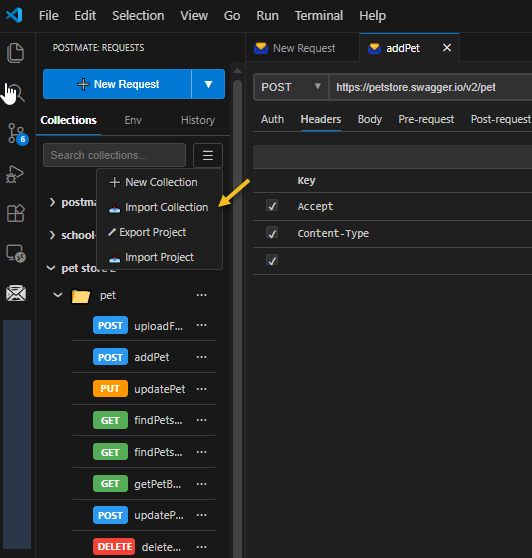
Click the Collections tab in the Postmate Client panel to see all your saved collections listed in the sidebar. Each collection in the sidebar has a ... (ellipsis) menu for quick actions.
Creating a Collection
- Go to the Collections tab.
- Click the hamburger menu icon (☰) next to the search bar.
- Select New Collection from the dropdown.
- Enter a name for your collection and press Enter.
Your new collection appears instantly, ready to hold requests.
Suggested screenshot: Create Collection dialog.
Collection Actions Menu
Hover over any collection in the list and click the ... (ellipsis) button to open its action menu:
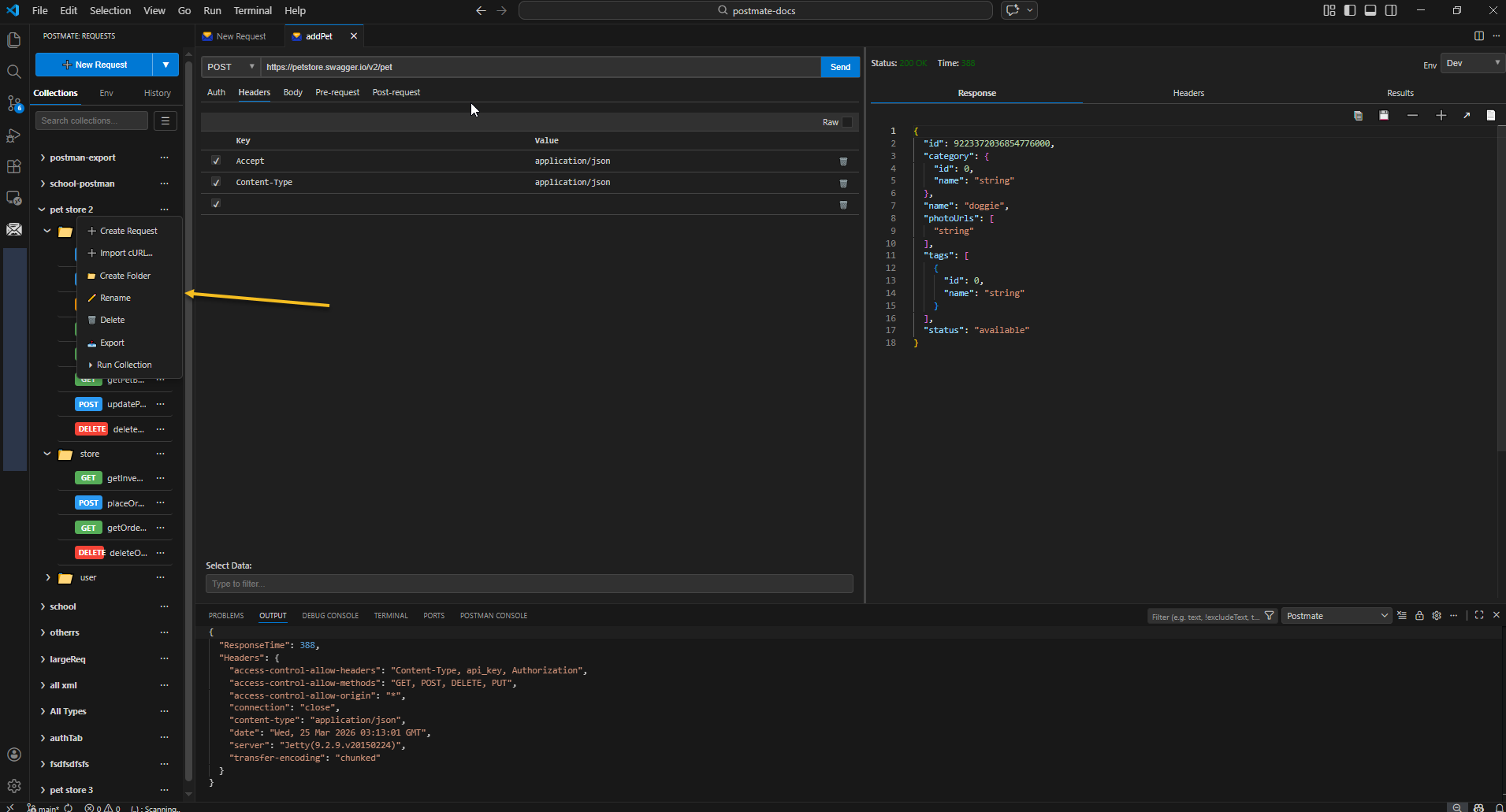
| Action | Description |
|---|---|
| Create Request | Add a new request directly inside this collection |
| Import cURL... | Paste a cURL command and save it as a request in this collection |
| Create Folder | Add a subfolder to organise requests by feature or module |
| Rename | Rename the collection |
| Delete | Permanently remove the collection and all its requests |
| Export | Download the collection as a JSON file |
| Run Collection | Execute all requests in sequence using the Collection Runner |
TIP
Use the Export feature to commit your collection to Git and track API test changes over time.
Organising with Folders
Within a collection, you can create folders to group related requests. Folders can be nested for complex APIs.
Example structure:
School API
├── Auth
│   ├── POST /login
│   ├── POST /refresh
│   └── DELETE /logout
├── Students
│   ├── GET /students
│   ├── POST /students
│   └── GET /students/:id
└── Admin
    └── GET /admin/stats
Folders follow the same ... menu pattern — hover any folder to rename, delete, add requests inside it, or create a nested subfolder.
Importing Collections
Use the hamburger menu (☰) to access import options:
- Import Collection — import a previously exported Postmate Client or Postman collection JSON file
- Import Project — restore a full exported project including environments and data tables
Already on Postman? See the Migrate from Postman for a step-by-step guide.
Exporting Collections
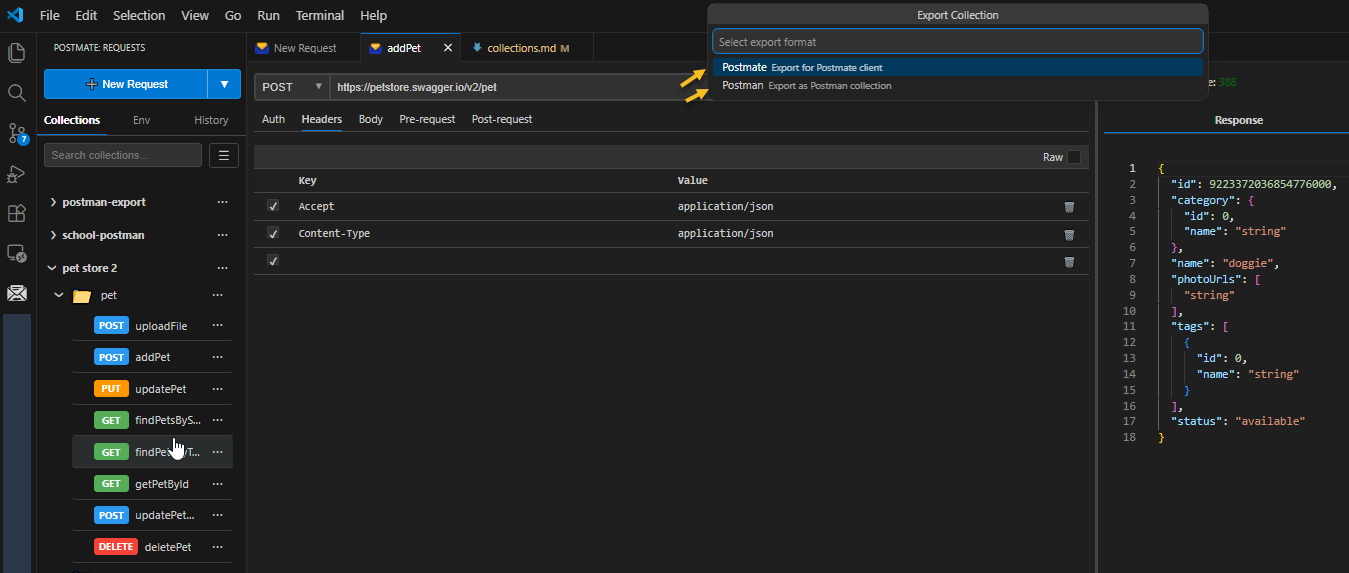
Export a collection via ...→ Export to:
- Commit to Git for version control
- Share with teammates for easy collaboration
- Use with the Postmate CLI in automated CI/CD pipelines
To export all collections plus environments, use the hamburger menu → Export Project.
Running a Collection
Click ... → Run Collection to open the Collection Runner. Select:
- The environment
- Optional data table for test data
Click Run to execute every request in sequence automatically.
TIP
💡 Tip: Combine collections with data tables and environments to run fully parameterized, automated tests across Dev, Staging, and Production environments.
See the Collection Runner guide for full details including data-driven runs.
Why Use Collections in Postmate Client?
- Fully local API testing — no cloud, no login, zero data sharing
- Supports importing Postman collections for fast migration
- Organize requests for team collaboration and CI/CD workflows
- Run automated, repeatable test suites using the Collection Runner