Data Tagging in Postmate Client (Filter CSV Rows per Request)
Data tagging lets you filter which rows of a data table are available to a specific request in Postmate Client. Add a _dtag column to your CSV, tag rows with one or more labels, and select tags in the request's Settings tab — only matching rows will appear in the Select Data dropdown.
This is a feature no other API testing tool offers. Postman, Thunder Client, Insomnia, and Bruno all force you to use the entire data file or none of it. Postmate Client is the first VS Code Postman alternative that takes test data management seriously enough to give you per-request row filtering — built directly into the request UI.
What Is Data Tagging?
Data tagging is a way to scope rows of a data table to specific API requests using tags.
In a normal data table, every row is available to every request that uses the table. That works when you have 10 or 20 rows. It breaks down when you have hundreds of rows covering different domains — accounts, payments, users, orders — and only want a subset visible to each request.
Data tagging fixes this by letting you:
- Mark each row with one or more tags in a reserved
_dtagcolumn - Select tags on a per-request basis in the Settings tab
- Restrict the request's data dropdown to only the rows that match
Tagging is optional. If you don't add a _dtag column, every row stays available to every request — the standard data-table behaviour.
Why Use Data Tagging?
Without tagging, large data tables become unusable in practice:
- The Select Data dropdown fills up with hundreds of rows, most irrelevant to the current request
- Filtering by typing only helps if you remember exact values
- Splitting the data into multiple CSV files duplicates shared columns (env, credentials, base IDs) and creates a maintenance burden
Tagging solves all three:
- The dropdown shows only the rows that matter to this request
- One data table can cover an entire test suite without bloating any one request
- Shared columns stay shared; tag-specific rows stay scoped
Common ways to use tags:
- By feature area —
accounts,payments,users,orders - By scenario type —
happy-path,negative,edge-case - By team or owner —
qa,dev,staging-only - By data sensitivity —
pii-safe,synthetic,prod-readonly
How to Add Tags to a Data Table
- Open your data table CSV in the VS Code editor.
- Add a column with the exact header
_dtag— it can appear anywhere in the column order. - For each row you want to tag, enter one or more tags separated by spaces.
- Leave the
_dtagcell empty for any row you want to remain untagged.
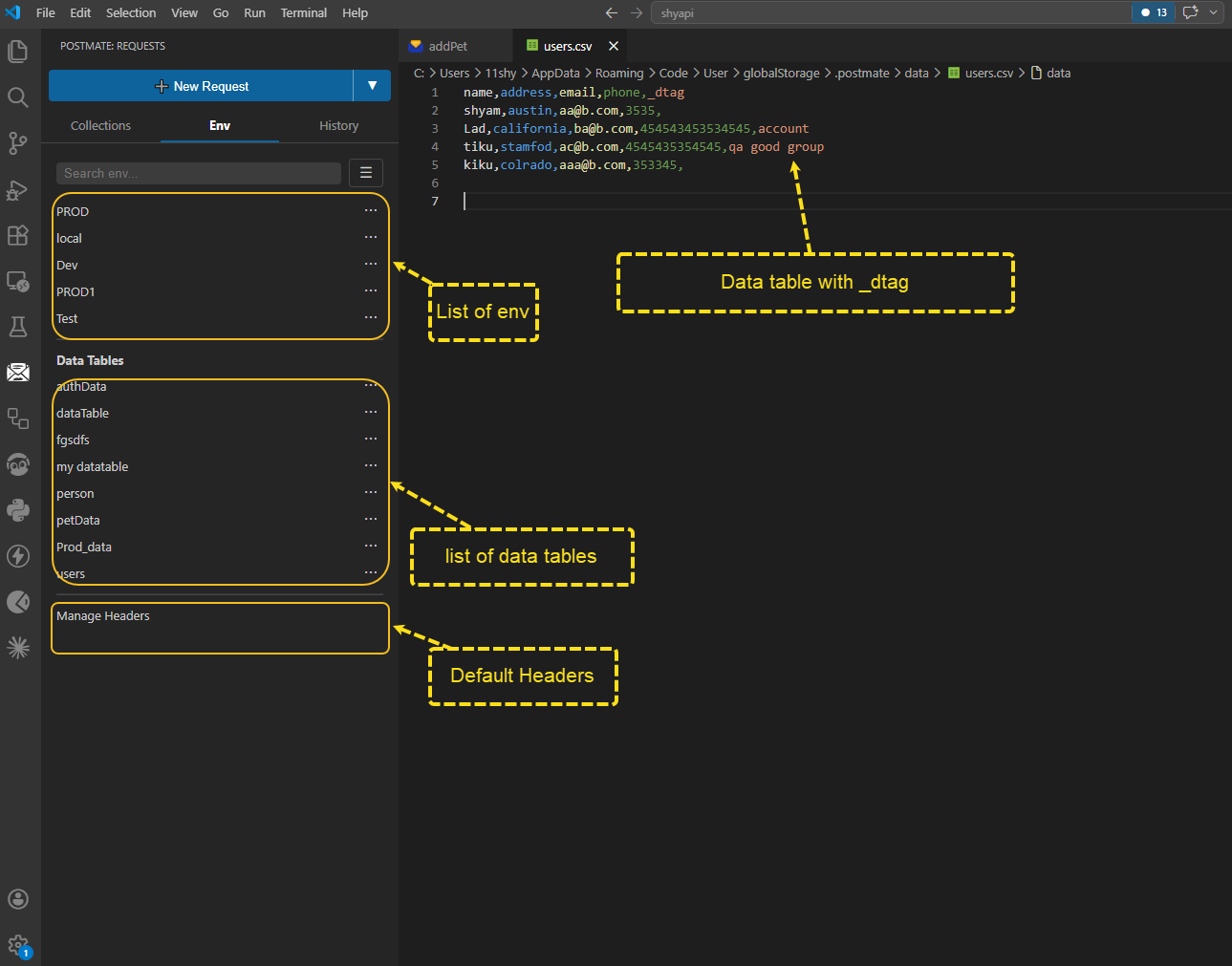
Example: a users.csv data table with tags
name,address,email,phone,_dtag
shyam,austin,[email protected],3535,
Lad,california,[email protected],4545,account
tiku,stamford,[email protected],4545,qa good group
kiku,colorado,[email protected],3533,- shyam — untagged
- Lad — tagged
account - tiku — tagged
qa,good, andgroup(three tags, space-separated) - kiku — untagged
Tag Rules
- One column, reserved name — the column must be named exactly
_dtag(with the leading underscore). - Multiple tags per row — separate tags with spaces, not commas.
- Position is flexible — the
_dtagcolumn can appear anywhere in the column order. - Tags are case-insensitive —
Accountandaccountare treated as the same tag. - No reserved characters — tags can use letters, numbers, hyphens, underscores, or any character other than the space separator.
- Optional column — if you don't need tagging, leave the column out entirely.
How to Select Tags on a Request
Once your data table has a _dtag column with tagged rows:
- Open the request that uses the data table.
- Click the Settings tab in the request panel.
- Under Data Tags, click any tag in the Available tags list to add it.
- To remove a selected tag, click it in the Selected Tags zone.
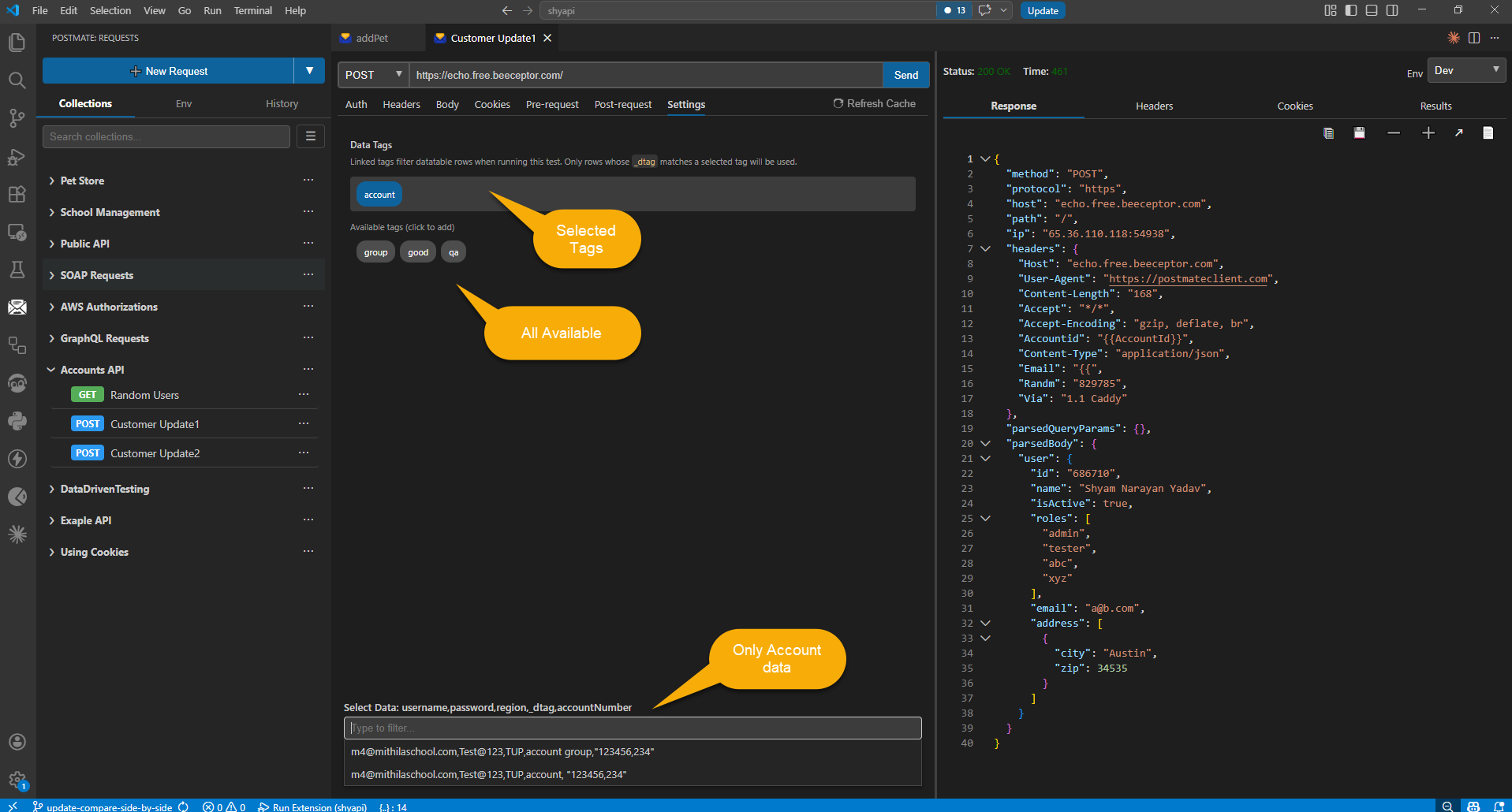
The Select Data dropdown at the bottom of the request panel updates immediately. Only rows whose _dtag matches a selected tag will appear.
How Tag Filtering Works
The filtering rules are simple and predictable:
| Tags selected on the request | Which rows appear in Select Data |
|---|---|
| No tags selected | All rows in the data table (tagged and untagged) |
| One tag selected | Only rows tagged with that tag |
| Multiple tags selected | Rows tagged with any of the selected tags (OR filter) |
Important — untagged rows when any tag is selected:
When any tag is selected on a request, untagged rows are excluded from the Select Data dropdown.
This is the rule worth memorising. If you tag some of your rows and forget to tag others, the untagged rows will silently disappear from any request that has a tag selected. If a row "goes missing" from your dropdown, the first thing to check is whether the row has a _dtag value and whether that value matches a tag selected on the request.
TIP
If you want a row to be available regardless of which tag is selected, give it every tag your requests might select — e.g. _dtag of account payment user order. Now it will match any of those four tags on any request.
Worked Example
Using the data table from earlier:
name,address,email,phone,_dtag
shyam,austin,[email protected],3535,
Lad,california,[email protected],4545,account
tiku,stamford,[email protected],4545,qa good group
kiku,colorado,[email protected],3533,
Scenario 1 — request has no tags selected: All four rows appear in Select Data.
Scenario 2 — request has account selected: Only Lad appears. shyam and kiku are excluded because they have no _dtag. tiku is excluded because none of its tags (qa, good, group) match account.
Scenario 3 — request has account and qa selected:Lad appears (matches account) and tiku appears (matches qa). shyam and kiku are still excluded — untagged rows are out the moment any tag is selected.
Scenario 4 — request has good selected: Only tiku appears.
Data Tagging with Collection Runner
The same filtering rules apply when running data-driven tests with Collection Runner.
If a request in the collection has tags selected in its Settings tab, only matching rows will be used for that request during the run. This means a single data table can drive an entire collection — payment requests run only payment rows, account requests run only account rows — with no need to split the table or duplicate data.
For requests in the same collection that have no tags selected, the runner uses all rows (tagged and untagged) as normal.
Tips
- Tag from day one if the table will grow — adding tags retroactively to a 500-row table is tedious. If you expect a table to grow past 50 rows, add
_dtagearly and tag as you go. - Keep tag names short and consistent —
accountis easier to type and remember thanaccount-related-test-data. Pick a convention and stick with it. - Document your tags — add a short comment in the team's README listing what each tag means. CSV files do not support comments, so the convention has to live elsewhere.
- Tags are case-insensitive — but consistent casing in the file still helps human readers. Pick lowercase or PascalCase and stay with it.
- Use spaces, not commas — commas are CSV separators. If you accidentally separate tags with commas, they will become separate CSV columns and break the table.
- Test the filter — after tagging, open the request, select a tag, and verify the Select Data dropdown shows what you expect. Misspelled tags are a common source of "where did my row go?" confusion.
Frequently Asked Questions
What is the _dtag column? A reserved column name in a data table CSV that holds one or more tags per row, separated by spaces. Postmate Client uses the values in this column to filter which rows are available to a specific request based on the tags selected in the request's Settings tab.
Is data tagging required? No. Data tagging is an optional layer on top of Data Tables. If you don't add a _dtag column, every row stays available to every request — the default behaviour.
How do I tag a row with multiple tags? Separate the tags with a single space inside the _dtag cell. For example: qa good group applies three tags to the row.
What happens to untagged rows when a tag is selected on a request? Untagged rows are excluded from the Select Data dropdown whenever any tag is selected on the request. This is the most common surprise; see How Tag Filtering Works.
Are tags case-sensitive? No. Account and account are treated as the same tag.
Can a row have unlimited tags? There is no enforced limit. In practice, 1–5 tags per row covers almost every workflow.
Does the _dtag column have to be in a specific position? No. It can appear anywhere in the column order. Postmate Client looks up the column by name.
Can I use data tagging in Collection Runner? Yes. The same filtering rules apply during automated runs — a request with tags selected will iterate only the matching rows. See Data Tagging with Collection Runner.
Does Postman support per-request CSV row filtering like this? No. Postman, Thunder Client, Insomnia, and Bruno all use the entire CSV for every request that references it. Data tagging is unique to Postmate Client.
Is data tagging free? Yes. Like every Postmate Client feature, data tagging is free forever — no paid tiers, no feature paywalls.
Learn More
- Data Tables — create CSV data tables and attach them to environments
- Collection Runner — run a request across every tagged row automatically
- Environments & Variables — manage values per environment
- Building Requests — the full request panel reference