Headers in Postmate Client (API Header Management Made Easy)
Managing HTTP headers in REST APIs shouldn’t slow you down. Postmate Client is a fast, privacy-first VS Code API client that lets you create, edit, and reuse HTTP headers with ease — making it a powerful Postman alternative for developers who want speed, control, and local-first security.
What Are HTTP Headers in REST APIs?
HTTP headers are key-value pairs sent with every API request and response. They provide metadata such as authentication, content type, caching rules, and more.
Common examples include:
- Authorization (Bearer tokens, API keys)
- Content-Type (JSON, form data)
- Accept (response format)
Postmate Client makes managing these headers faster and less error-prone with autocomplete and reusable configurations.
No more retyping headers, fixing typos, or copying values between requests.
Mode 1 — Tabular Mode (Default) — Fast & Structured Header Editing
The Headers tab opens in tabular mode by default — perfect for clarity and control.
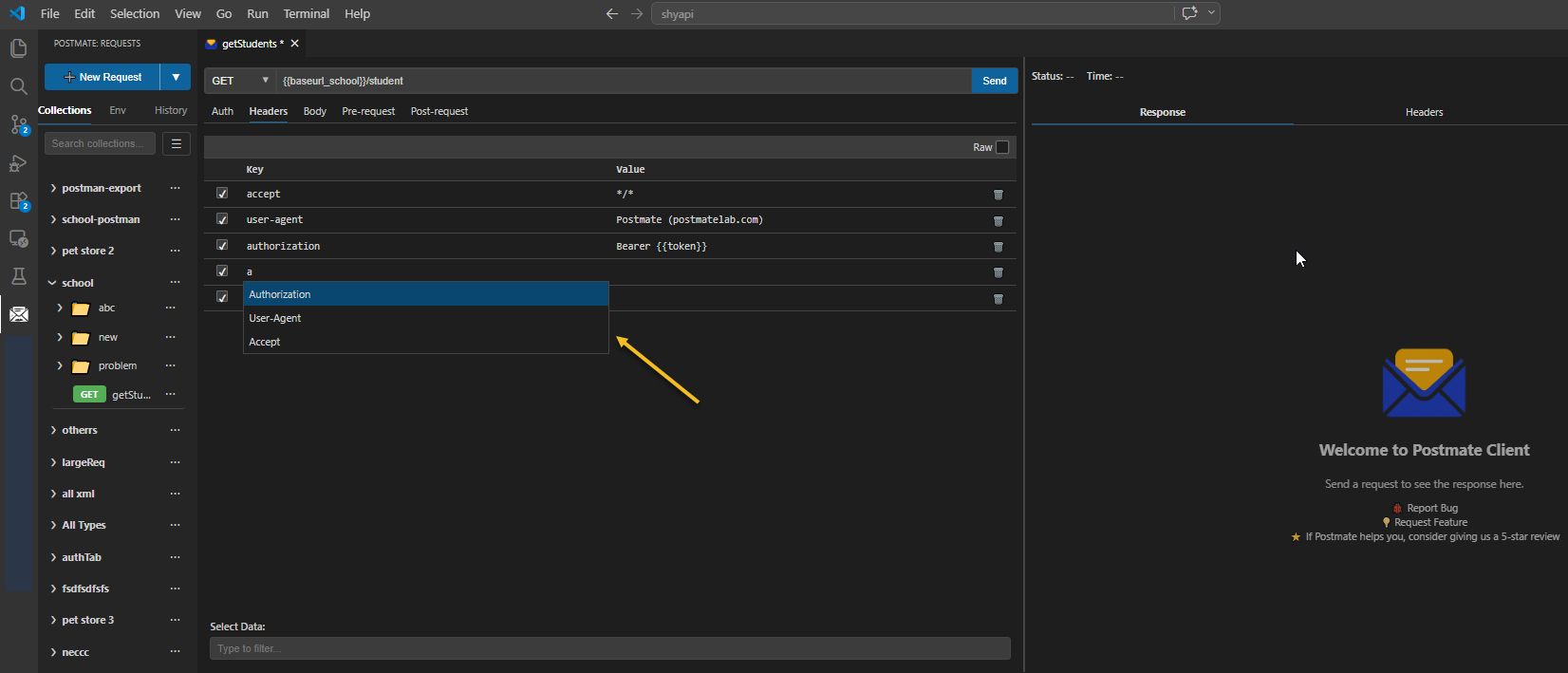
Each header is represented as a row with:
- Checkbox — enable or disable a header without deleting it
- Key — the header name (e.g.
Authorization,Content-Type) - Value — the header value (supports variable syntax)
- Delete icon — remove the row permanently
This mode is ideal for:
- Debugging API requests
- Toggling headers quickly
- Avoiding mistakes in header formatting
- Managing API headers efficiently inside VS Code
Use Variables in Headers (Dynamic API Requests)
Postmate Client supports environment variables directly in headers — making your API requests dynamic and reusable.
Authorization: Bearer {{token}}
X-Tenant-ID:   {{tenantId}}
X-API-Key:     {{apiKey}}
Raw Mode — Bulk Edit HTTP Headers Faster
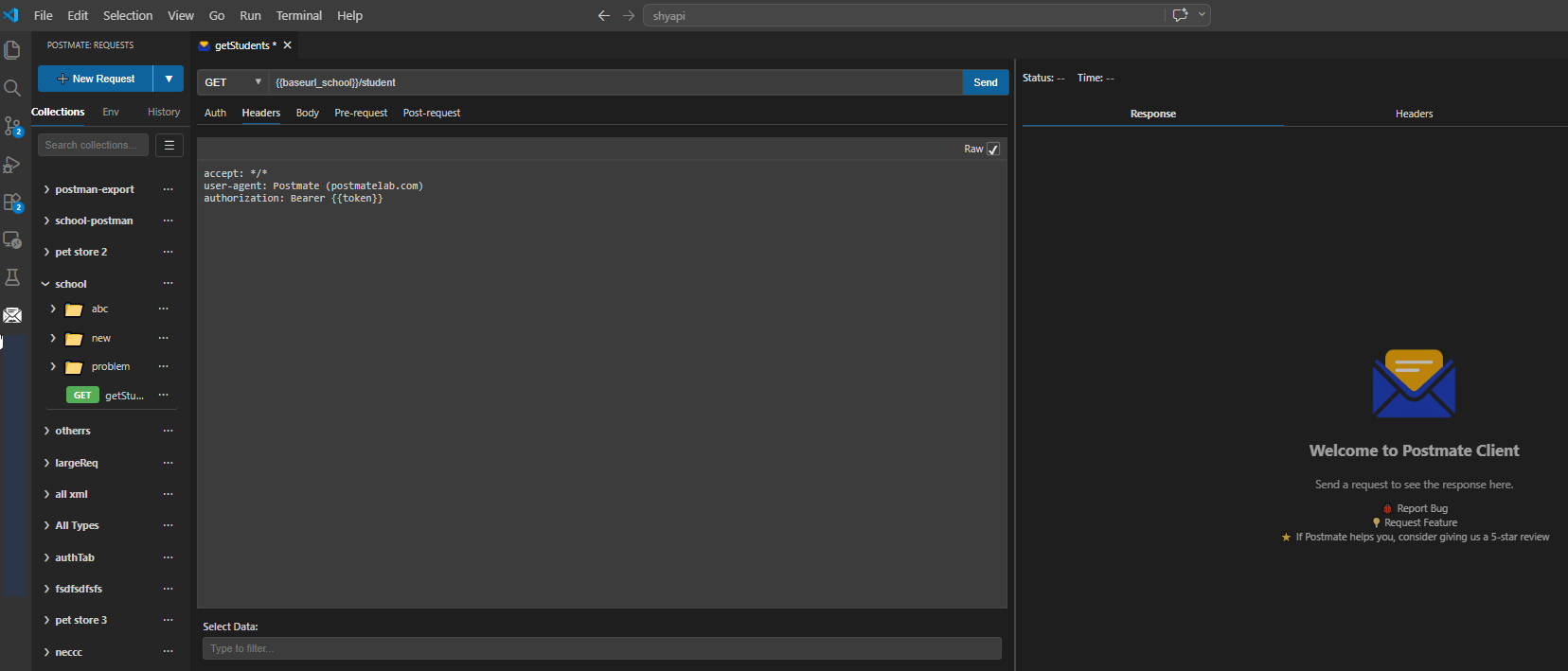
For bulk editing, switch to Raw mode by checking the Raw checkbox in the top-right corner of the Headers tab.
- Toggle using the Raw checkbox
- Edit headers as plain text
- One header per line
Example:
accept: */*
user-agent: Postmate Client (postmateclient.com)
authorization: Bearer {{token}}
content-type: application/json
Best for:
- Copy-pasting headers from docs
- Bulk updates
- Quick prototyping
TIP
Raw mode is great when you have many headers to add at once — paste them all in a block and switch back to tabular mode to fine-tune individual values.
Header Autocomplete — Save Time on Every API Request
Autocomplete is where Postmate Client really shines.
As you type a header name:
- Get instant suggestions
- Auto-fill both key + value
- Avoid typos and formatting errors
Setup Header Autocomplete (One-Time Setup)
Step 1 — Open Manage Headers
- Go to Env tab
- Click Manage Headers
- Opens postmateHeaders.json in VS Code
Step 2 — Add Common Headers
[
  {
    "key": "content-type",
    "value": "application/json",
    "default": false
  },
  {
    "key": "Authorization",
    "value": "Bearer {{token}}",
    "default": false
  },
  {
    "key": "User-Agent",
    "value": "Postmate Client (postmateclient.com)",
    "default": false
  },
  {
    "key": "Accept",
    "value": "*/*",
    "default": false
  }
]
Step 3 — Save & Use
- Press
Ctrl + S - Autocomplete is instantly available — no restart required.
How Autocomplete Works
Start typing in the Headers tab:
- a → Authorization, Accept
- u → User-Agent
- co → content-type
Select a suggestion → Postmate auto-fills both key and value.
Common HTTP Headers Cheat Sheet
| Header | Common Values |
|---|---|
Content-Type | application/json, application/x-www-form-urlencoded, multipart/form-data |
Authorization | Bearer , Basic |
Accept | application/json, */* |
Cache-Control | no-cache, no-store |
User-Agent | Postmate Client (postmateclient.com) |
X-API-Key | |
X-Request-ID | |
Why Postmate Client is Better for Managing HTTP Headers
- ⚡ Faster than traditional API tools
- 🔐 Fully local — your API data stays private
- 🧠 Smart autocomplete reduces errors
- 🔄 Dual editing modes (structured + raw)
- ♻️ Reusable headers with environment variables
If you're testing APIs daily inside VS Code, Postmate Client helps you move faster with fewer errors — without sending your data to the cloud.
Reading Response Headers
Response headers are accessible in post-request scripts via RESPONSE.headers:
const contentType = RESPONSE.headers['content-type'];
const rateLimit   = RESPONSE.headers['x-ratelimit-remaining'];

pm.log('Remaining API calls: ' + rateLimit);