Building Requests in Postmate Client
Build and send HTTP and REST API requests in VS Code using Postmate Client — a fast, privacy-first Postman alternative.
Postmate Client provides a request panel designed to minimise typing and maximise speed. Autocomplete works across headers, variables, body, and test data — so you can build fully configured requests in seconds without remembering variable names or headers.
Unlike Postman or Thunder Client, Postmate Client runs entirely locally, keeping your API data private.
The Request Panel
Every request is split into two sides:
- Left panel — design your request: URL, method, headers, body, scripts, and tests
- Right panel — view the response: body, headers, and test results
At the top of the left panel: the HTTP method dropdown and the URL bar. At the top-right: the Env dropdown to switch environments instantly.
Supported methods: GET, POST, PUT, PATCH, DELETE, and QUERY.
QUERY — the newest HTTP method (RFC 10008)
QUERY is safe and idempotent like GET, but carries a request body like POST — standardized in June 2026 for exactly the case every API developer knows: a search or filter payload too complex for a URL. Select QUERY from the method dropdown and the body editor works just like it does for POST, with full {{variable}} resolution. Use it instead of POST /search when your server supports it — intermediaries can then safely retry and cache the request. Available from Postmate Client 1.6.0.
Setting the URL & Environment
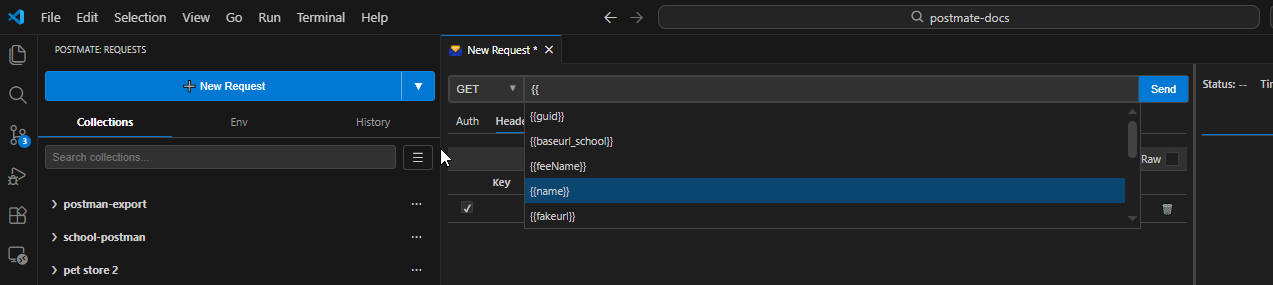
Enter your endpoint URL directly, or type {{ to trigger variable autocomplete. Postmate lists variables from the active environment and data table instantly — just select one to insert it.
Switch environments using the Env dropdown in the top-right. Selecting an environment updates every {{variable}} in your URL, headers, and body automatically.
Postmate simplifies request building with inline autocomplete and zero-config environments — no memorisation, no typos.
Headers Tab
The Headers tab displays a key-value table for all request headers.
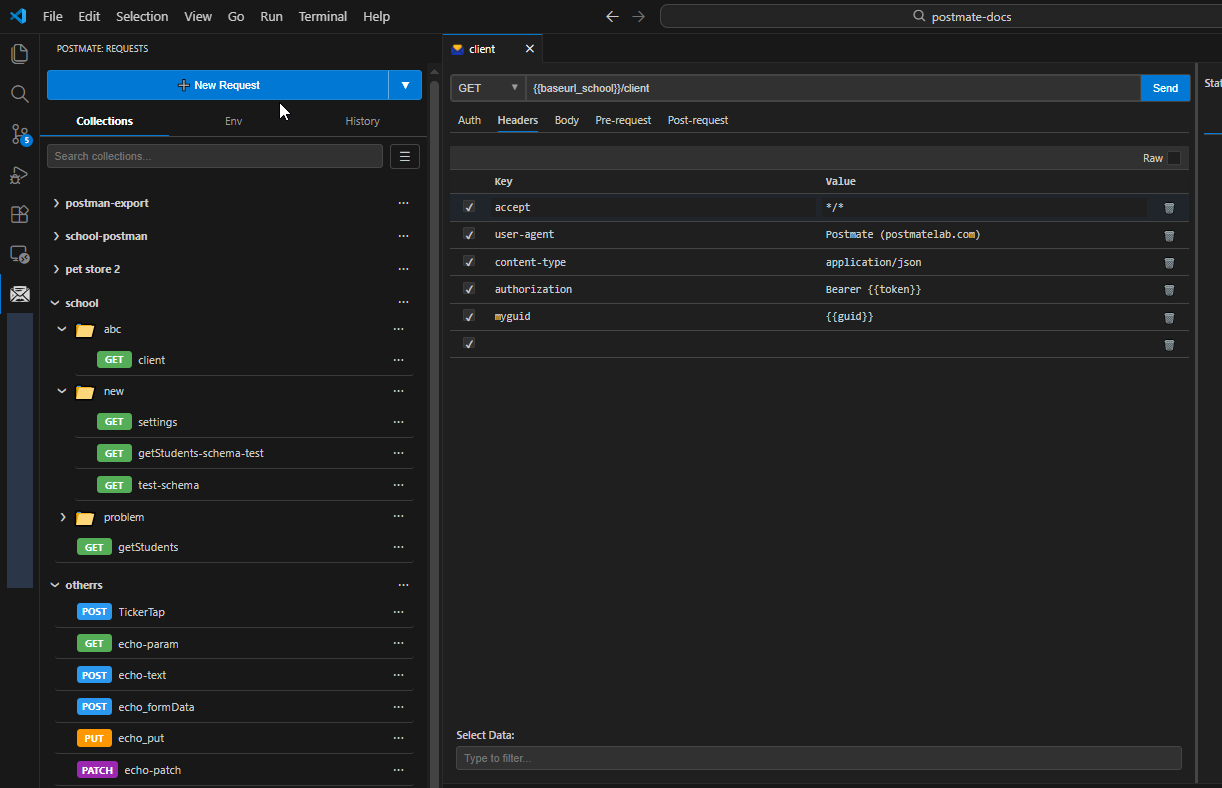
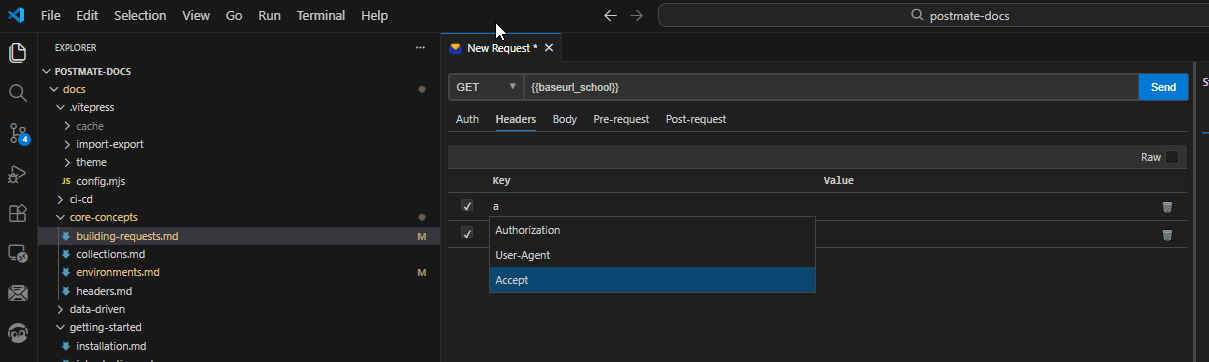
Two layers of autocomplete work here:
1. Header name autocomplete — start typing any header name and Postmate lists matching headers from your Manage Headers file. Select one and the default value is filled in automatically.
2. Variable autocomplete — anywhere in the value column, type {{ and Postmate lists variables from the active environment and data table. Select the variable — no memorising names, no spelling mistakes.
Each header row has a checkbox to enable/disable it without deleting it, and a delete icon to remove it entirely.
Body Tab
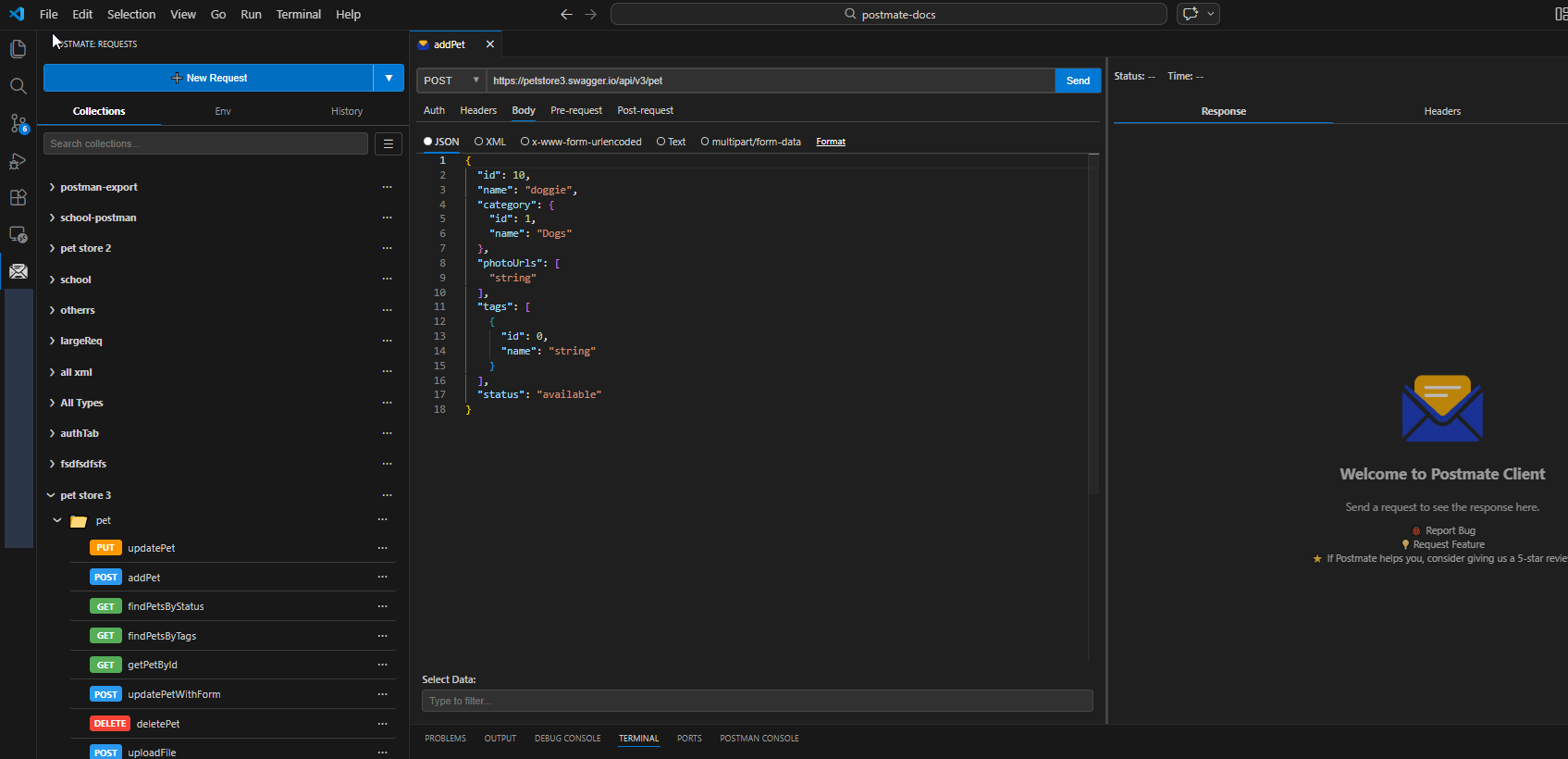
Click the Body tab to set the request body. Choose your content type using the radio buttons at the top:
| Format | Use case |
|---|---|
| JSON | REST APIs returning/accepting JSON |
| XML | SOAP or XML-based APIs |
| x-www-form-urlencoded | HTML form submissions |
| Text | Plain text payloads |
| multipart/form-data | File uploads and mixed content |
| GraphQL | GraphQL queries and mutations with a separate Variables editor |
Auto-format — after writing a JSON or XML body, click the Format link to instantly pretty-print and indent the content. No manual formatting needed.
Variable autocomplete works across all fields in the Postmate Client request panel — type {{ anywhere to insert environment or data-table variables instantly.
GraphQL Body
Select the GraphQL option to switch the Body tab into GraphQL mode. The editor splits into two sections: Query for your query or mutation, and Variables for a JSON object of operation variables.
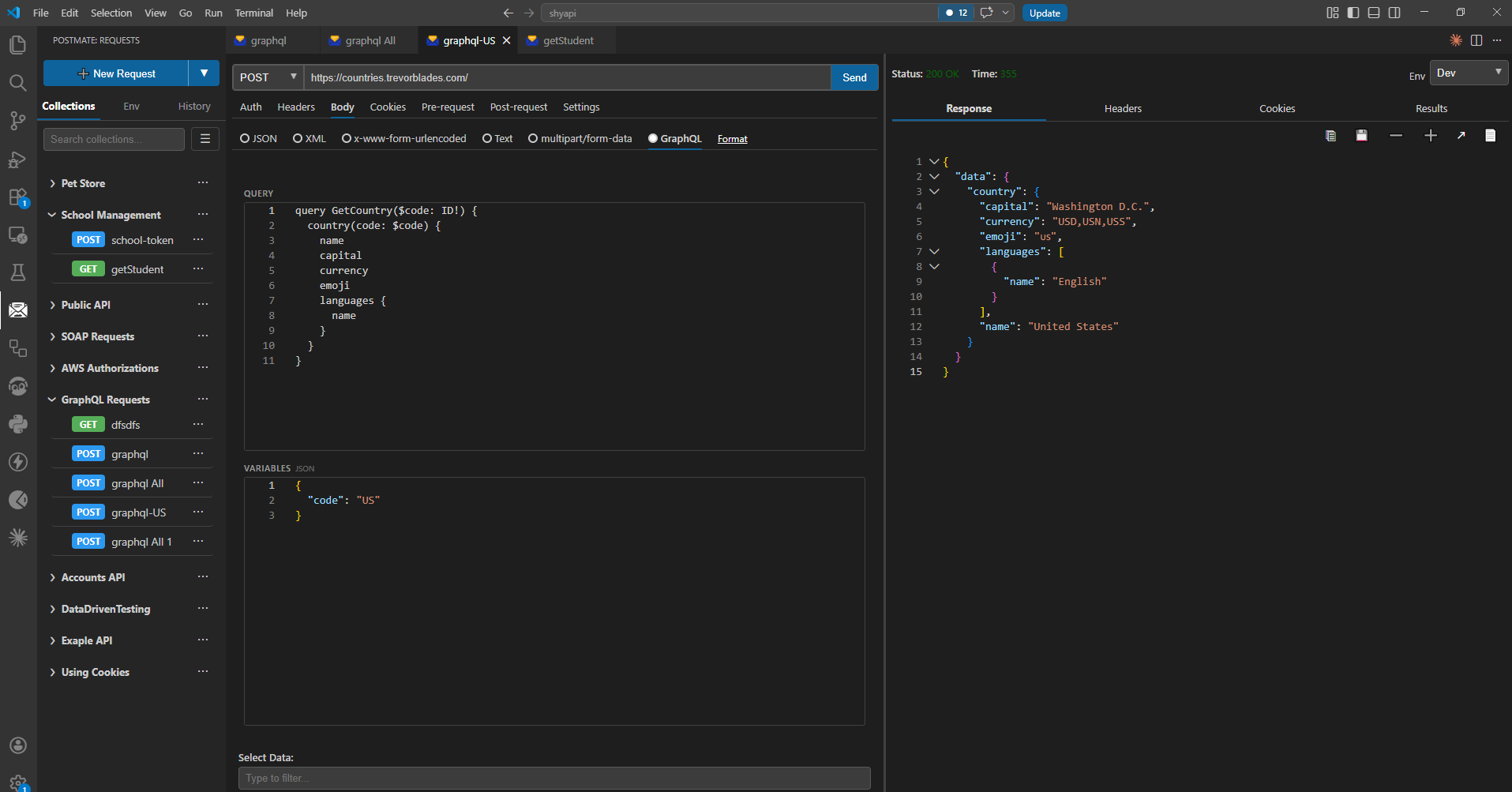
Postmate Client automatically sets Content-Type: application/json and wraps the query and variables into the correct request payload at send time — no manual JSON wrapping needed.
Variable autocomplete ({{...}}) works inside both the Query and Variables editors, so you can pass environment values like or directly into your GraphQL operations.
→ See GraphQL Requests for the full GraphQL guide
Auth Tab
Click the Auth tab to configure authentication for the request. Select your auth type — Basic, Bearer, API Key, AWS Signature, or OAuth 2.0 — and fill in the required fields. Postmate sets the correct headers automatically.
For token-based auth, reference a variable so it stays in sync across environments:
Bearer {{accessToken}}OAuth 2.0 can fetch and refresh tokens for you — including the interactive Authorization Code (PKCE) browser flow.
→ See Authentication for every auth type in detail
Pre-request Tab
The Pre-request tab lets you run logic before the request is sent. It has two sub-tabs:
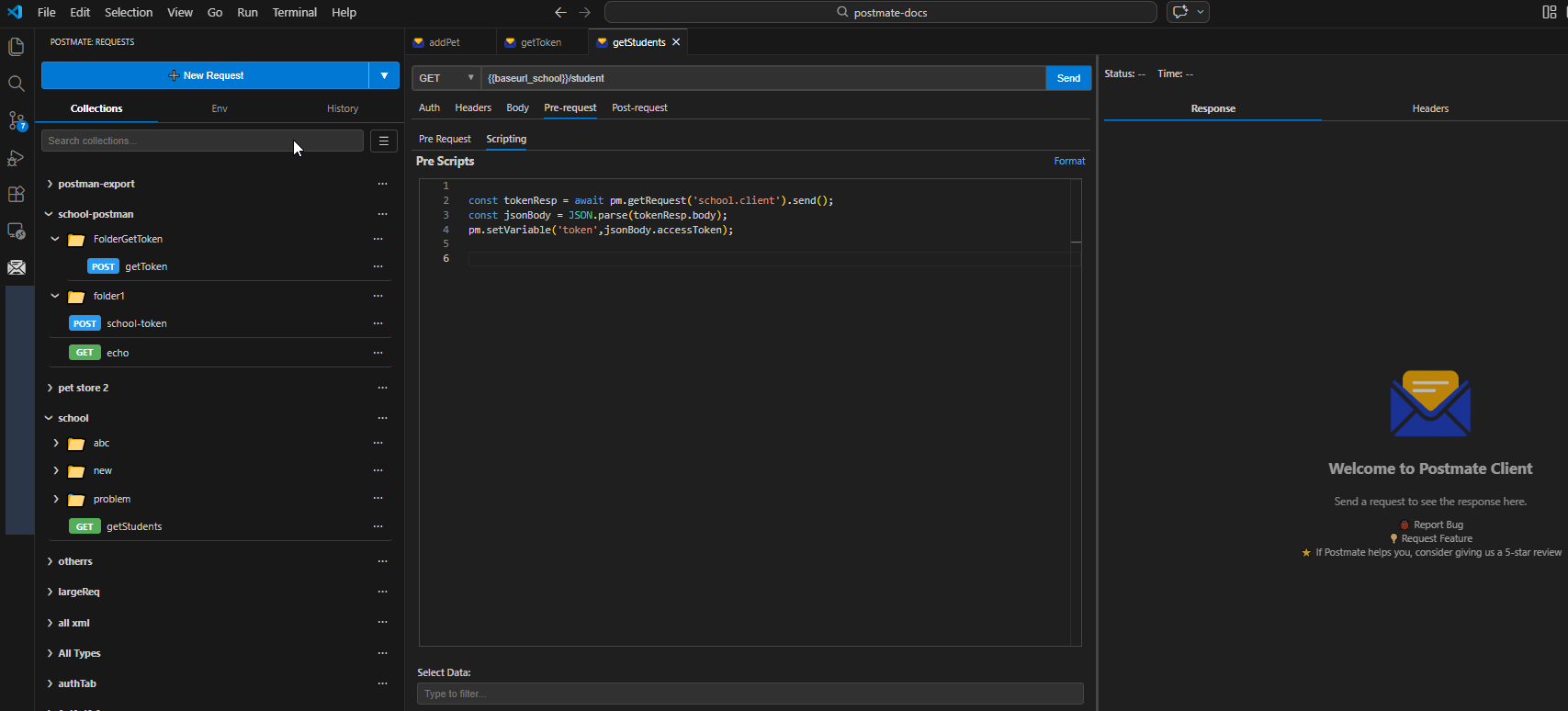
Pre-request — chain an existing request from any collection. Use the Collection dropdown to pick a collection, then the Request dropdown to pick the specific request. Add multiple pre-requests with + Add Request. Postmate executes them in order before sending the main request — perfect for running a login request first to capture a token.
Scripting — write full JavaScript to set variables, generate dynamic values, or run any pre-send logic.
→ See Request Chaining for the full chaining guide
→ See Pre/Post Scripts for the scripting reference
Post-request Tab
The Post-request tab runs after the response is received. It has two sub-tabs:
Test — Plain English Assertions
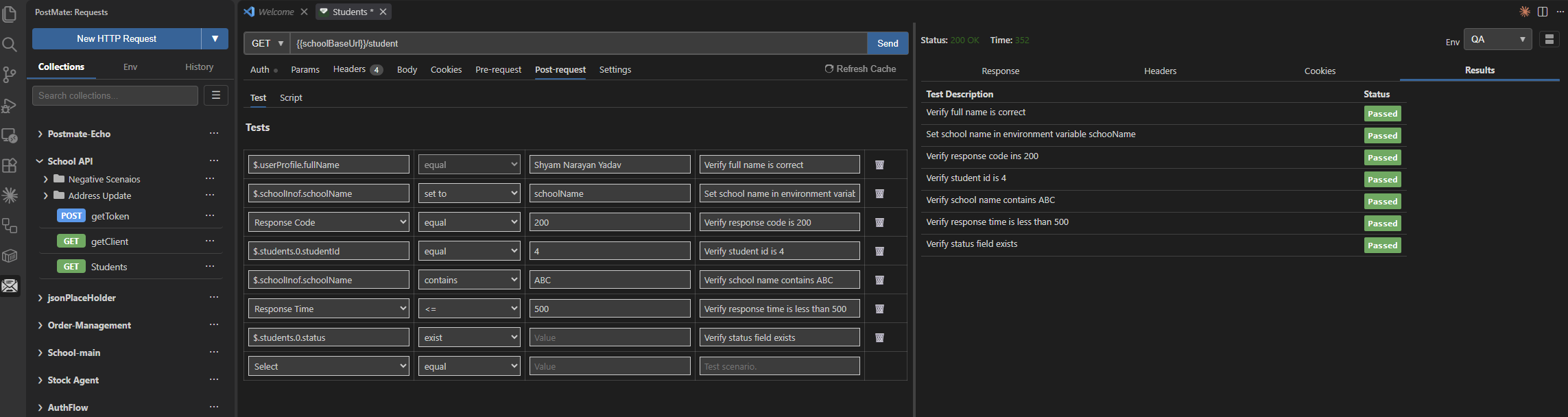
Write assertions as table rows — no code required. Each row is one test with four fields:
| Field | Description |
|---|---|
| JSON path | Pick the response field to check — autocompleted from the last response (e.g. $.schoolInof.schoolName) |
| Operator | equal, contains, =, set to, and more |
| Expected value | The value you expect |
| Test description | A human-readable label shown in the Results panel |
The first column also supports Set to — which stores the response value into an environment variable rather than asserting against it. This is how you chain a value from one response into the next request without writing a script.
Script — Full JavaScript
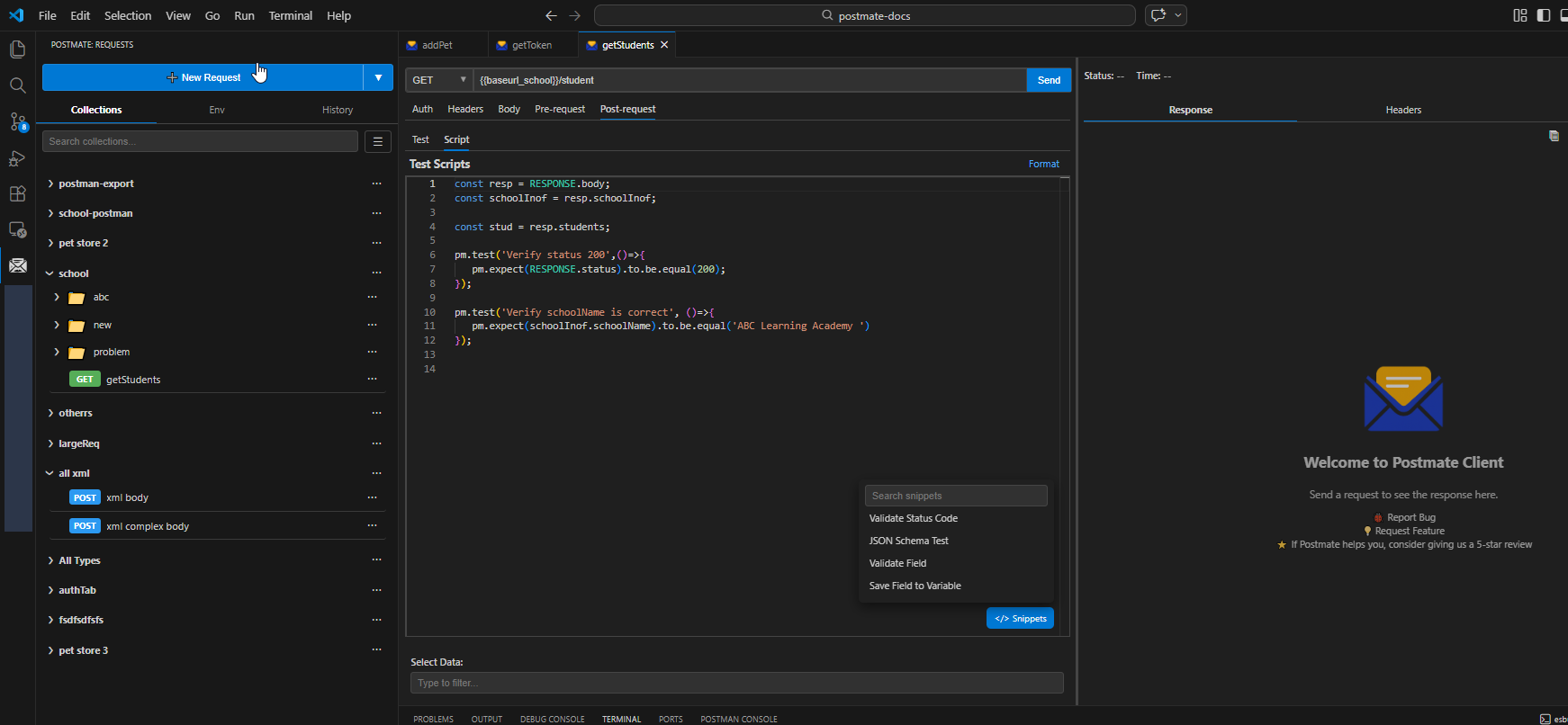
For advanced logic, switch to the Script tab and write JavaScript directly. The Monaco-based editor provides syntax highlighting, pm.* autocomplete, and a Snippets button (bottom-right) that inserts ready-made patterns.
const resp       = RESPONSE.body;
const schoolInof = resp.schoolInof;
const stud       = resp.students;

pm.test('Verify status 200', () => {
  pm.expect(RESPONSE.status).to.be.equal(200);
});

pm.test('Verify schoolName is correct', () => {
  pm.expect(schoolInof.schoolName).to.be.equal('ABC Learning Academy');
});
→ See Tests & Assertions for the full plain-English test guide
→ See Pre/Post Scripts for the full scripting reference
→ See pm Library Reference for all available pm.* methods
Select Data
At the bottom of the request panel, the Select Data field lets you pick a row from the data table attached to the active environment. Start typing to filter rows by any column value — matching rows appear instantly.
Select a row and its values are injected as variables into the request at send time. Combined with the Env dropdown, this gives you the 3-second workflow: pick environment, pick data row, click Send.
TIP
Run your request once before writing Post-request tests. Postmate will have the actual response available, so JSON path suggestions in the Test tab are populated from real data — no guessing field names.
Conclusion
Postmate Client makes building API requests in VS Code fast, reliable, and error-free with powerful autocomplete, environment variables, and built-in testing.
If you're looking for a secure, no-login Postman alternative, Postmate gives you everything you need — directly inside your editor.
FAQs
How do I build an API request in Postmate Client?
Use the request panel to define URL, method, headers, and body. Autocomplete helps you quickly insert variables and headers without memorising them.
Does Postmate support environment variables?
Yes, Postmate supports environment variables and data tables. You can use anywhere in your request.
Does Postmate Client support GraphQL?
Yes. Select GraphQL in the Body tab to write queries and mutations with a dedicated Variables editor. Postmate handles the JSON payload wrapping automatically. See GraphQL Requests for details.
Is Postmate Client a Postman alternative?
Yes, Postmate Client is a lightweight, privacy-first Postman alternative that runs entirely inside VS Code without requiring login or cloud sync.