Thunder Client Requests Gone After the Update? How to Get Them Back Without Logging In
Your Thunder Client requests are not deleted. They are still on your disk as plain JSON files, and you can get them back without creating an account.
Thunder Client 3.0 made an account mandatory for the free plan. After the update, the extension stops showing your saved collections until you sign in. To many people it looks like years of requests vanished overnight, and the Marketplace reviews show how that felt.
The good news: Thunder Client stores everything locally. Its own support replies point users to the storage folder. This post shows where that folder is, how to recover the files by hand, and how to import everything into another VS Code client in one click.
Where Thunder Client keeps your data
Thunder Client saves its data in VS Code's global storage, in a folder named rangav.vscode-thunder-client. The exact path depends on your operating system.
| OS | Folder |
|---|---|
| Windows | %APPDATA%\Code\User\globalStorage\rangav.vscode-thunder-client |
| macOS | ~/Library/Application Support/Code/User/globalStorage/rangav.vscode-thunder-client |
| Linux | ~/.config/Code/User/globalStorage/rangav.vscode-thunder-client |
| VS Code Server (remote/WSL) | ~/.vscode-server/data/User/globalStorage/rangav.vscode-thunder-client |
Using VS Code Insiders, Cursor, Windsurf or VSCodium? Replace Code with that editor's folder name, for example Code - Insiders or Cursor.
Inside the folder you will find:
collections/with onetc_col_<name>.jsonfile per collection. Each file holds the collection's folders and every request in it.environment/with onetc_env_<name>.jsonfile per environment, including all its variables.
If you had Thunder's Save to Workspace setting turned on, look for a thunder-tests folder in your project as well. It uses the same collections and environments layout.
Option 1: Recover the files by hand
The files are plain JSON, so you can read and back them up with nothing but a file manager and a text editor.
- Close VS Code, so nothing writes to the folder while you work.
- Open the folder for your OS from the table above. On Windows, paste the path into the File Explorer address bar.
- Copy the whole
rangav.vscode-thunder-clientfolder somewhere safe. This is your backup, whatever you decide next. - Open any
tc_col_*.jsonfile in VS Code. Each request's URL, method, headers and body are right there, so you can copy what you need.
This gets your data back in readable form. It does not give you a working API client again: you still need a tool that can open those requests and send them.
Option 2: Import Thunder Client collections into Postmate in one click
Postmate Client is a free, local-first API client for VS Code. It needs no account, sends nothing to the cloud and stores your requests as plain JSON in your project. Since version 2.5.5 it reads Thunder Client's folder directly, so you don't need to export anything or log in to Thunder first.
Install Postmate Client from the VS Code Marketplace.
If you have no Postmate collections yet, Postmate offers the import as soon as it starts: click Import. You can also open the Postmate sidebar and choose Import Collection → Thunder Client.
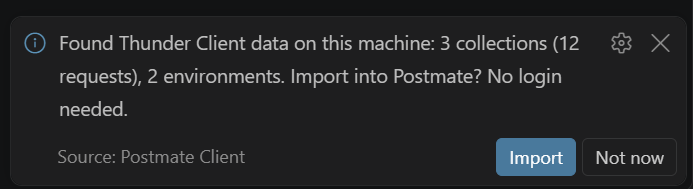
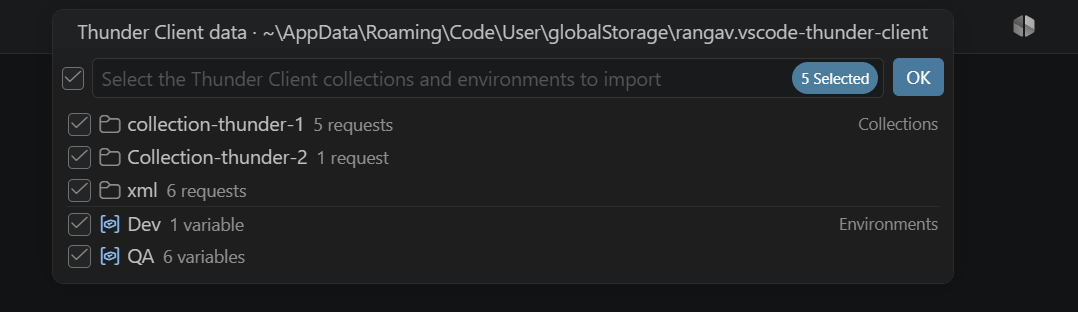
Choose Import from this machine. Postmate shows the folder where it found your data.
Tick the collections and environments you want. All are selected by default.
Click OK. Your requests appear in the sidebar with their folders, in the same order.
A few details that matter if you already use Postmate:
- Your environments are safe. If an environment with the same name already exists, Postmate only adds the variables it is missing. It never replaces a value you already have.
- Your active environment carries over. Thunder's default environment becomes active in Postmate, unless you have already picked one.
- Other editors are covered too. Postmate also finds Thunder data from other editors on the same machine, so you can move from VS Code to Cursor and still bring your requests along.
Thunder's files are only read, never changed or deleted. If you ever want to go back, everything is still where it was.
What carries over, and what doesn't
Most requests come across complete. A few Thunder-specific features don't, and Postmate lists each one in a summary after the import.
| Comes across | Needs a quick redo |
|---|---|
| Collections, nested folders and request order | Thunder tests (re-add them in the Tests tab) |
| URL, method, enabled headers and query params | Pre-request and post-request scripts |
| JSON, form, multipart text fields, XML, text and GraphQL bodies | File fields in multipart bodies (re-attach the files) |
| Auth types other than Bearer and Basic |
| Bearer and Basic auth | Disabled headers and query params (skipped) |
| Environments and their variables |
FAQ
Did the Thunder Client update delete my requests? No. The files stay in Thunder's storage folder. The extension just won't show them until you sign in.
Do I need to export from Thunder Client first? No. Postmate reads the storage folder directly. Exporting is impossible anyway if Thunder won't open your collections without a login.
Do I need a Postmate account? No. Postmate has no accounts and no cloud sync. Your requests stay on your machine.
Can I still import an exported Thunder Client file? Yes. In the import menu, choose Choose an exported file… instead.
Is it safe to try? Yes. Postmate only reads Thunder's files. Make the backup from Option 1 first if you want extra peace of mind.
What if Postmate doesn't find my data? Check the folder from the table above. If your files are somewhere else, open an issue and tell us where Thunder put them.
Your requests, your machine
Whatever you choose, back up the Thunder folder first. Your work is still there, and it should stay yours.
Postmate can’t phone home, because it doesn’t have one. There is no Postmate server, no account and no cloud, only JSON files on your machine.
If you want an API client that never asks you to sign in to see your own requests, give Postmate a try. It's free, it keeps everything on your machine, and moving over takes about a minute. Still comparing tools? See how Postmate, Postman and Thunder Client handle scripting or browse the best free Postman alternatives for 2026.