How to Test an API with 50 Different Inputs Without Writing a Loop
Published April 24, 2026
You've written the request. It works. Now your tech lead says:
"Cool — now run it against these 50 user IDs and tell me which ones fail."
And suddenly you're staring at your API client wondering if you're really about to edit the same JSON body fifty times, click Send, screenshot the response, and paste it into a spreadsheet.
There's a better way. And no, it doesn't involve writing a JavaScript loop or learning a new CLI.
The Problem Nobody Talks About
Every API tester hits this wall eventually. You need to run the same request with different inputs — different user IDs, different product SKUs, different country codes, different payloads. The API itself is fine. You just need to hammer it with variations.
The usual options all have problems:
- Edit and re-send manually. Fine for 3 inputs. Soul-crushing for 50.
- Write a pre-request script with a loop. Works, but now you're maintaining code just to vary one field. And debugging a failing iteration means adding
console.logeverywhere. - Switch to a CLI tool like Newman. Great for CI, overkill for "I just need to check something before lunch."
- Build a spreadsheet + custom script. You just invented a worse version of a tool that already exists.
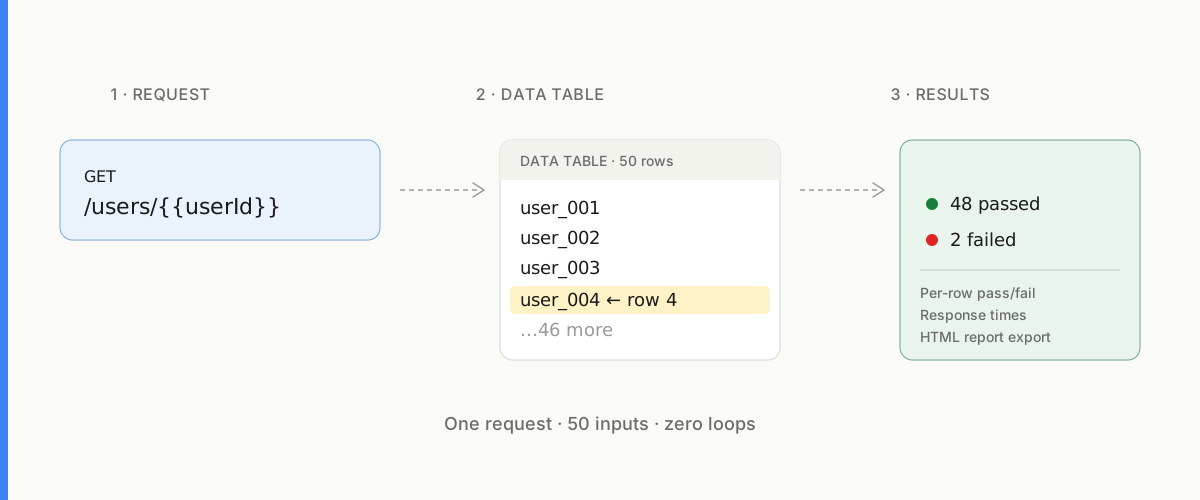
What you actually want: type the 50 inputs into a table, hit run, and see which ones passed and which ones failed.
That's data-driven testing. And it's one of those features that, once you've used it, you genuinely can't go back.
Postman and Thunder Client can do a version of this through their collection runners — but the workflow is clunky. The data file lives separately from your request and from your environment. Every time you want to run it, you're re-uploading a CSV. And if you want to re-run just one specific row? You have to run the whole collection and then hunt through the logs to find iteration #11.
In Postmate Client, you just pick the 11th row from a dropdown inside the request and hit Send. No re-upload, no log parsing, no extra steps.
The Real Shift: Data Belongs to the Environment, Not the Request
Here's the idea that makes everything else click.
In most API clients, the pieces you work with live in separate silos:
- The request (URL, method, body, headers)
- The environment (base URL, auth tokens, per-env variables)
- The data file (your 50 inputs) — uploaded only when you launch a runner
Every time you want to test the same endpoint in Staging with a different user ID, you're manually juggling all three.
Postmate Client changes the split. The Data Table is attached to the environment. So when you switch environments — say, Dev → Staging → Prod — the data swaps with it automatically. Dev has Dev's test user IDs. Prod has Prod's canary IDs. You don't reconfigure anything.
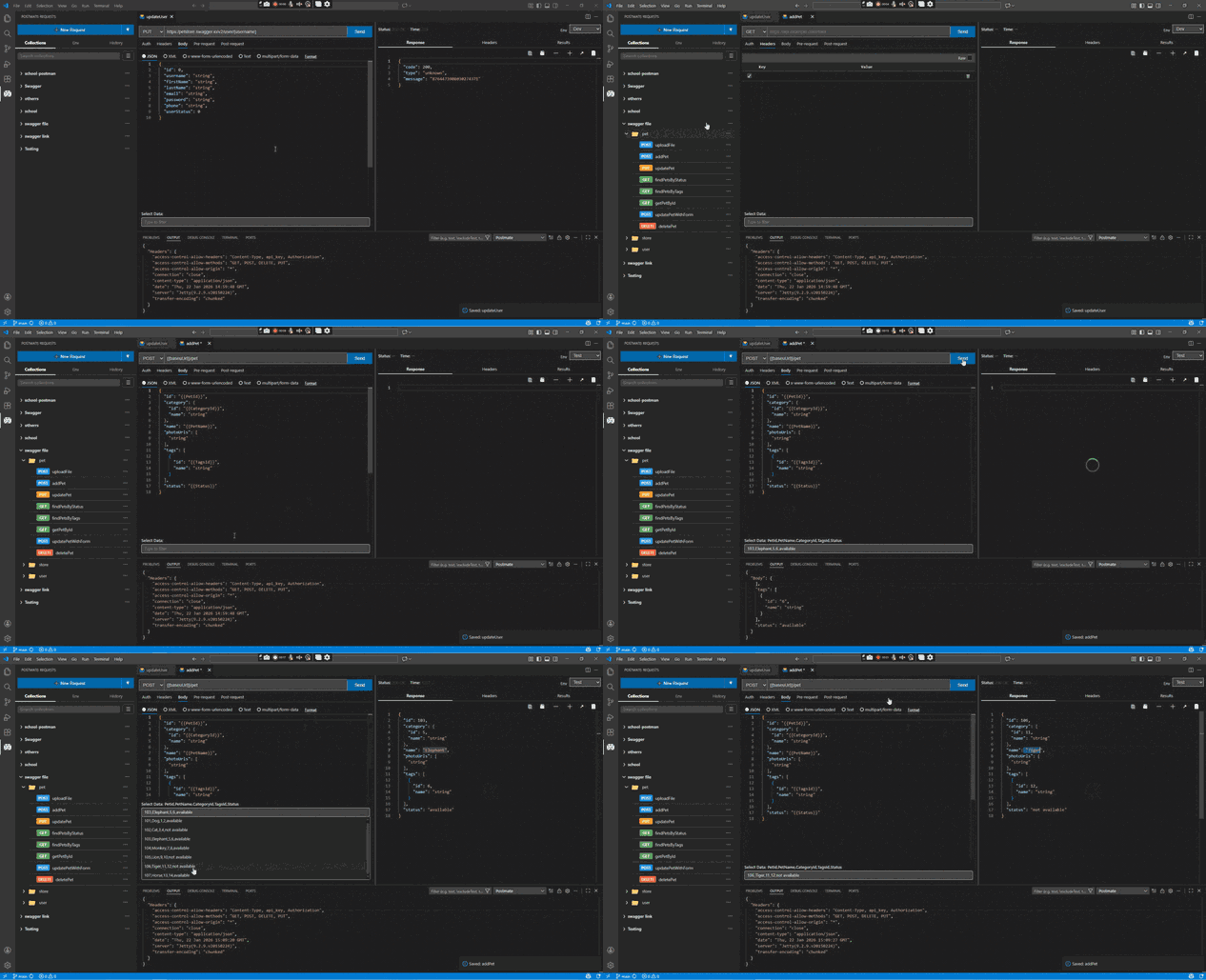
And because the data is tied to the environment (not a separate runner UI), every row of that table is available right inside the request panel, in a dropdown. Pick a row, hit Send. Pick a different row, hit Send. Same request, same tab, no edits.
The net effect: one request can run against any environment with any row of data — without changing a single character in the request itself.
The 3-Minute Version
Here's the workflow in Postmate Client — a free API testing extension for VS Code — from zero to a full test run across 50 inputs:
1. Build your request once
Set up the endpoint like you normally would. For this example, let's say you're testing a user lookup endpoint:
GET {{baseUrl}}/users/{{userId}}Both {{baseUrl}} and {{userId}} are variables. baseUrl comes from the environment; userId comes from the environment's Data Table.
2. Attach a Data Table to your environment
Prepare a CSV with your 50 user IDs (and any other columns you want — expected name, expected status, whatever). Then:
Env tab → hamburger menu → Import Data Table → select your .csv
You can attach different Data Tables to different environments. Dev gets dev-users.csv, Prod gets prod-canaries.csv. Now switching environments also switches your test data.
3. Send to one row
Open your request. At the bottom of the request panel you'll see a data selector dropdown — every row from the active environment's Data Table is sitting right there.
- Pick row 1 → hit Send → see that response.
- Pick row 11 → hit Send → see that response.
- Switch from Dev to Prod → the dropdown repopulates with Prod's data → hit Send.
No re-uploading. No runner launch. No manual edits. This is the part that feels different from every other tool.
4. Run the whole table (or a folder, or a collection)
When you want to run every row at once, use Postmate's Collection Runner. Pick the environment, pick the request (or folder, or whole collection), and it'll iterate through every row of the attached Data Table automatically.
5. Add assertions (optional but worth it)
In the Tests tab, you can assert against values from the current row:
pm.test("Status code is 200", function () {
    pm.expect(RESPONSE.status).to.equal(200);
});

pm.test("Name matches expected", function () {
    pm.expect(RESPONSE.body.Name).to.equal(pm.getVariable("expectedName"));
});
pm.getVariable("expectedName") pulls the value from the current row. Any column in your CSV is available as a variable.
6. Export the results
When the run finishes, export an HTML report — a real, shareable one with pass/fail counts, response times, and per-row details. Send it to your tech lead. Done before lunch.
Postmate Client vs Postman vs Thunder Client vs Newman: Data-Driven Testing Compared
If you're evaluating API clients specifically for running the same request against many inputs, here's how the main options stack up.
| Feature | Postmate Client | Postman | Thunder Client | Newman (CLI) |
|---|---|---|---|---|
| Data file attached to environment | ✅ | ❌ | ❌ | ❌ |
| Run a single row from the request panel | ✅ | ❌ | ❌ | ❌ |
| Data auto-swaps when environment changes | ✅ | ❌ | ❌ | ❌ |
| First-class data-driven testing UI | ✅ | ✅ | ❌ | ✅ |
| Works 100% offline, no login | ✅ | ❌ | ✅ | ✅ |
| Runs inside VS Code | ✅ | ❌ | ✅ | ❌ |
| Free | ✅ | Limited | Limited | ✅ |
Postmate Client vs Postman for data-driven testing
Postman supports data-driven runs through its Collection Runner, but the CSV lives separately from both the request and the environment. You upload the file, run the whole collection, and then the data file is disconnected again. Want to re-run just row 11 against Staging? You can't — you run the entire collection and dig through the iteration logs to find it.
In Postmate Client, the Data Table is attached to the environment. Every row appears in a dropdown inside the request panel, so running a single row is one click. Switching from Dev to Prod automatically swaps the data to Prod's test inputs — no re-upload, no reconfiguration.
Postmate Client vs Thunder Client
Thunder Client is a solid lightweight API client for VS Code and handles simple requests cleanly. But it doesn't have first-class data-driven testing — if you need to run the same request against 50 inputs, you're back to manual editing, external scripts, or switching tools entirely.
Postmate Client gives you the same "lives inside VS Code" feel Thunder Client users like, plus full data-driven testing, HTML reporting, and a Collection Runner.
Postmate Client vs Newman and other CLI runners
Newman and other CLI tools are excellent for CI/CD pipelines — they're built for running tests in automation, not for the iterative phase before automation. If you're still writing the request, still picking the right test inputs, still deciding what "pass" even means, a CLI is the wrong tool.
Postmate Client is designed for the interactive phase: build the request, pick a row, hit Send, see the response, adjust. When you're ready to automate, Postmate also ships with a CLI so the same collections run in your pipeline.
Do I still need a pre-request script with a loop?
No. The Data Table handles row iteration natively. You get per-row pass/fail results in the UI instead of parsing console.log output from a loop.
When Data-Driven Testing Actually Pays Off
It's not every request. But it shows up more than you'd think:
- Testing input validation. Run 20 variations of bad input (empty strings, SQL injection attempts, oversized payloads, Unicode edge cases) and confirm each returns the right error.
- Checking a list of IDs. "Do all these 200 products still exist in production?" One table, one run, one answer.
- Regression testing after a deploy. Run your golden-path table before and after. Any row that newly fails is a regression.
- Cross-environment sanity checks. Same request, same test data structure, different environments. Switch the env, re-run, done.
- Parameterized contract tests. Same endpoint, multiple tenants, multiple locales — all in one table.
- QA handoff. Give a QA engineer the request + the environment. They can add rows to the CSV without knowing anything about scripting.
The Part Where I Tell You It's Free
Postmate Client is a free VS Code extension. It runs 100% locally — no login, no account, no telemetry, no cloud sync of your requests to somebody else's server. Your API keys stay on your machine. Your data stays on your machine.
If that sounds obvious, it's because it should be obvious for a developer tool. It's just increasingly rare.
Install Postmate Client for free →
Or if you want to see the Data Table feature in more detail first, the full documentation is here.
TL;DR
Running the same API request against 50 different inputs shouldn't require writing code, switching tools, or losing an afternoon. Attach a Data Table to your environment once, and data-driven API testing becomes a click away inside the request panel — across any environment, without editing the request. The next time your tech lead asks, it'll take you thirty seconds.
Have questions or feedback? Open a discussion on GitHub or find us on YouTube.